Guide for manufacturers
How to send a coupon barcode and approve a Client Pack in Catalina Connect, step by step. Every screenshot uses made-up sample data.
Contents
Part 1. Getting started and signing in
What Catalina Connect is
Catalina Connect is the one place to manage your Walgreens Register Rewards offers. For each offer, you will send the GS1 coupon barcode and review and approve the Client Pack (the PDF proof of your offer) via the portal.
Every request follows the same four steps, shown at the top of each request:
- Review Request. Catalina emails you a request for an offer, with the Cost Estimate, the participating UPCs and all the details needed to create the GS1 barcode. You check the offer and approve the Cost Estimate.
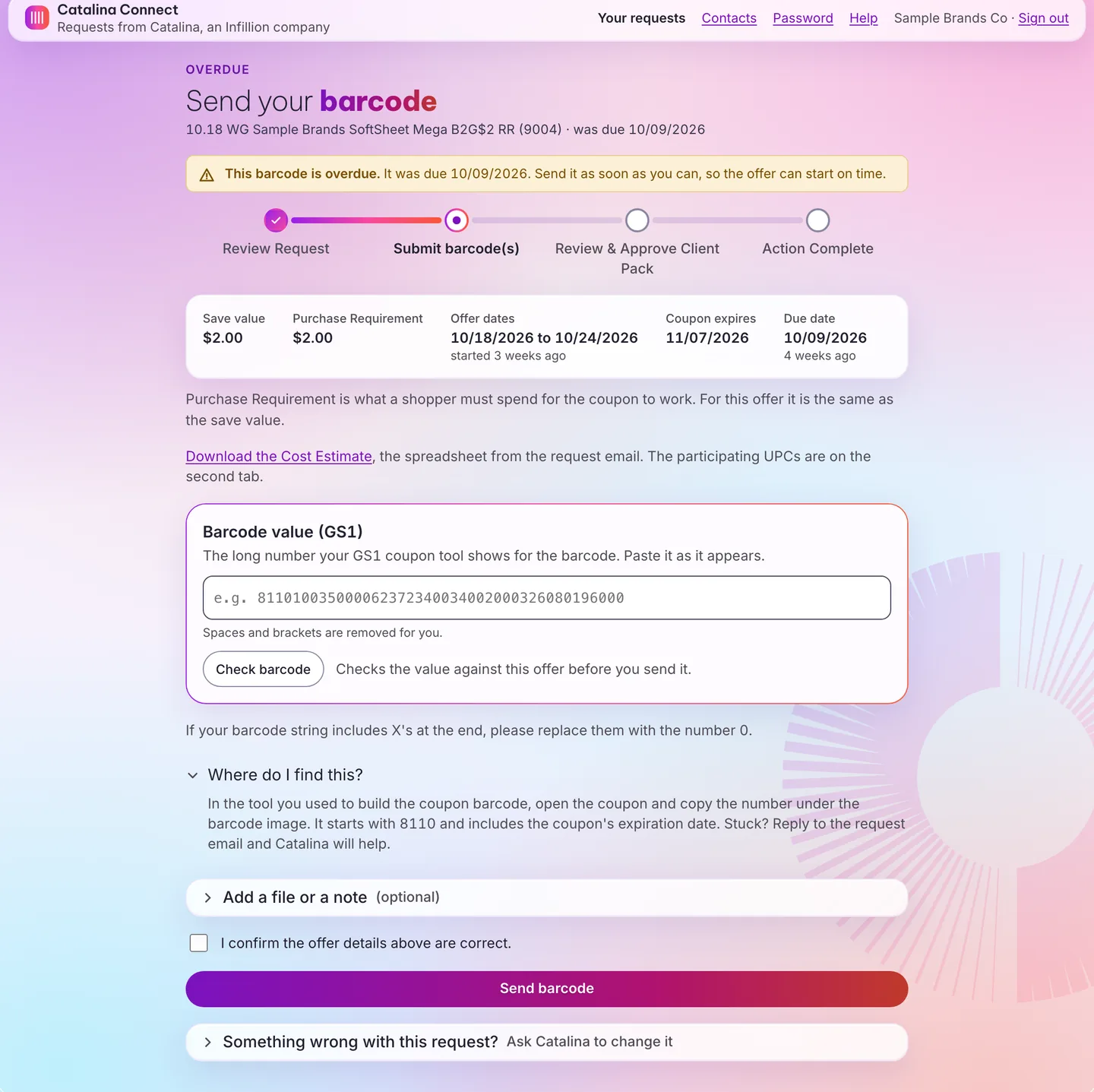
- Submit barcode(s). You paste the barcode value from your GS1 coupon tool. Catalina Connect checks it before you send it.
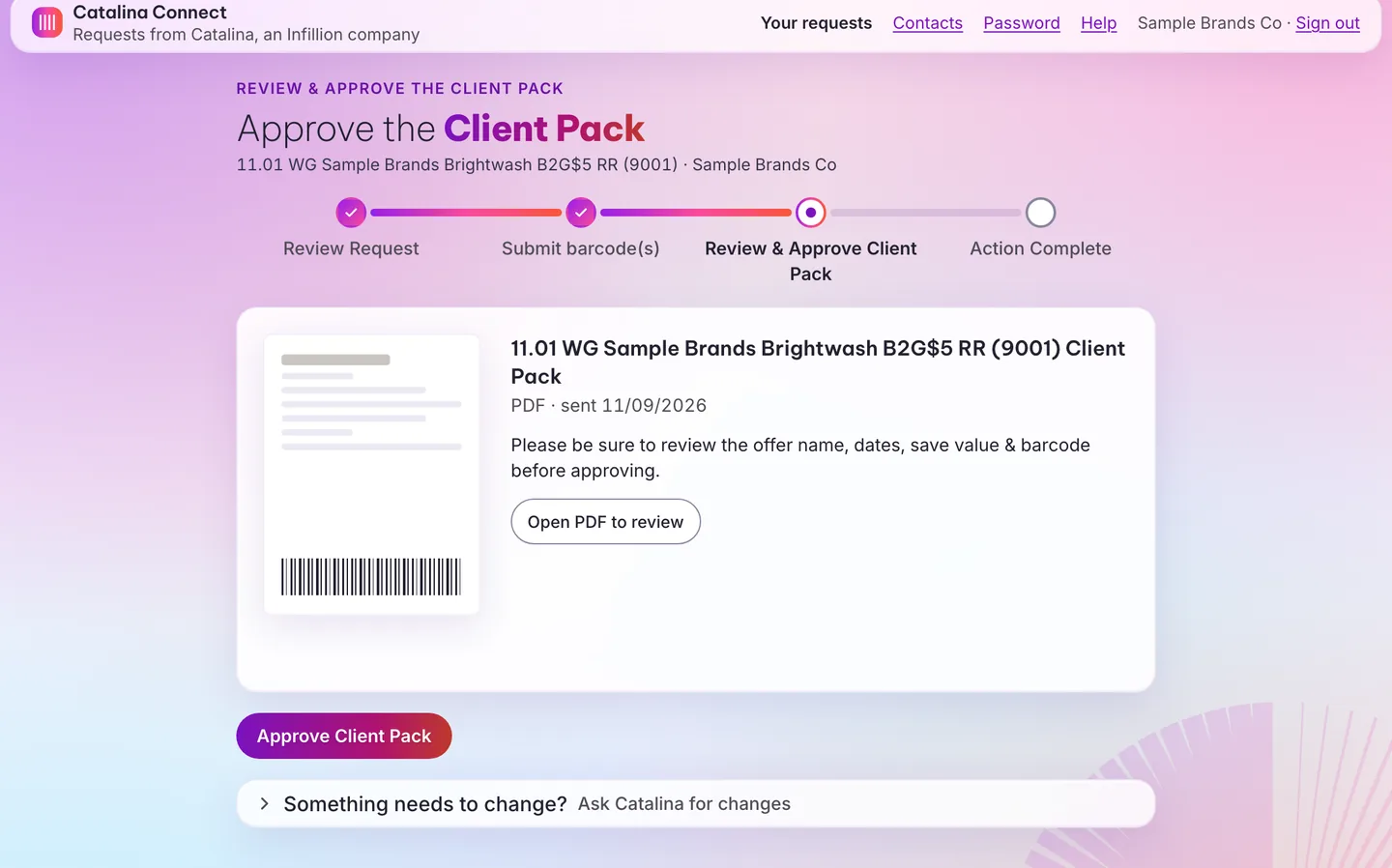
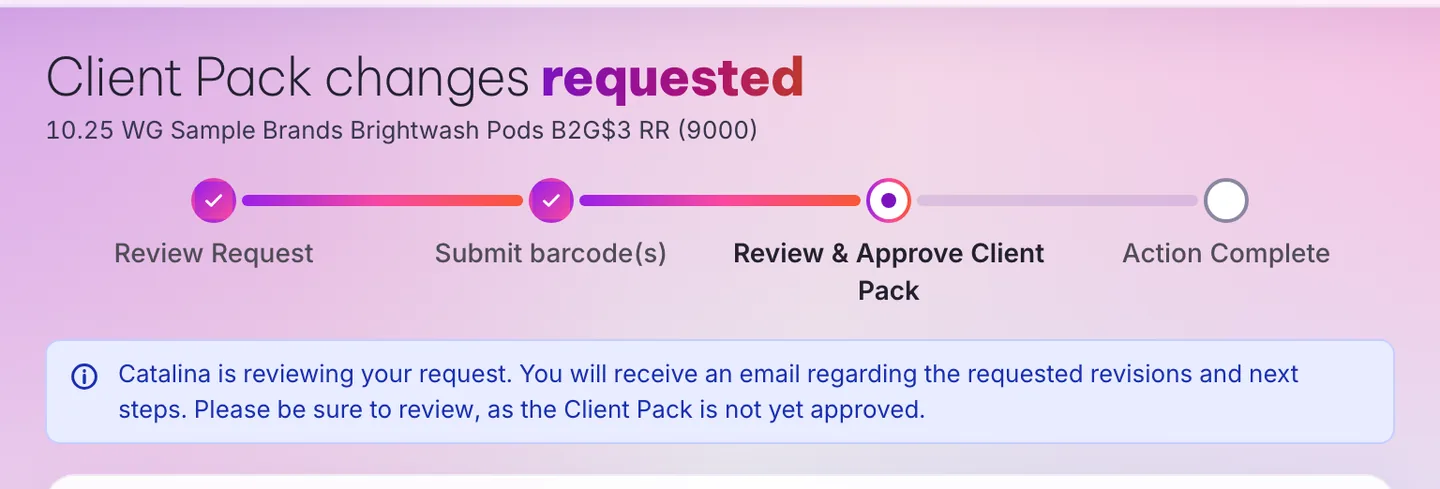
- Review & Approve Client Pack. Catalina uploads the Client Pack. You approve it or send feedback.
- Action Complete. Everyone gets a confirmation email: the offer is ready for set-up & activation.
Your welcome email
When you are added to a contact group, you get a welcome email with a link to set up your password and links to this guide and the quick guide. Everyone in a contact group gets the emails for that group's requests. Every email Catalina Connect sends is listed in Part 6.
Signing in
- Click the link in the email.
- Enter your email address and password, then click Sign in.
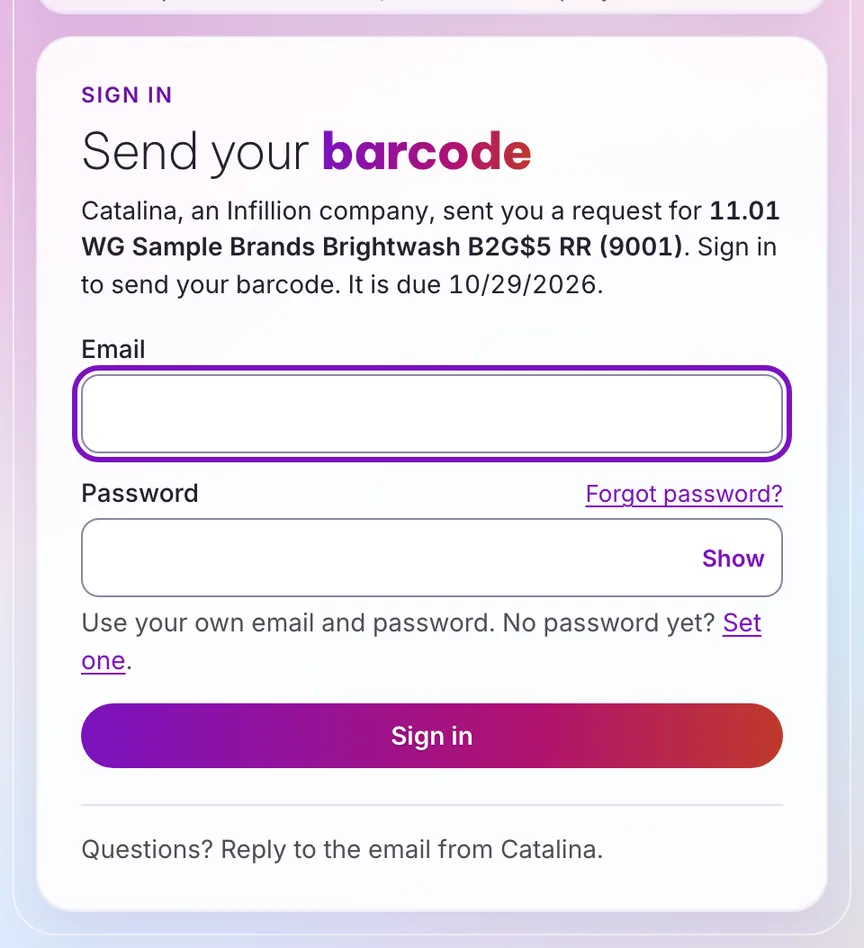
- Everyone has their own password.
- Your welcome email has a link to set up your password. No link, or it has expired? Click Forgot password?.
- One password covers every company you get requests for. If you have more than one, the site asks which to open. Use Switch company at the top to change it.
- You stay signed in on that computer, so later email links open straight to the request.
Part 2. The initial request
The initial request email
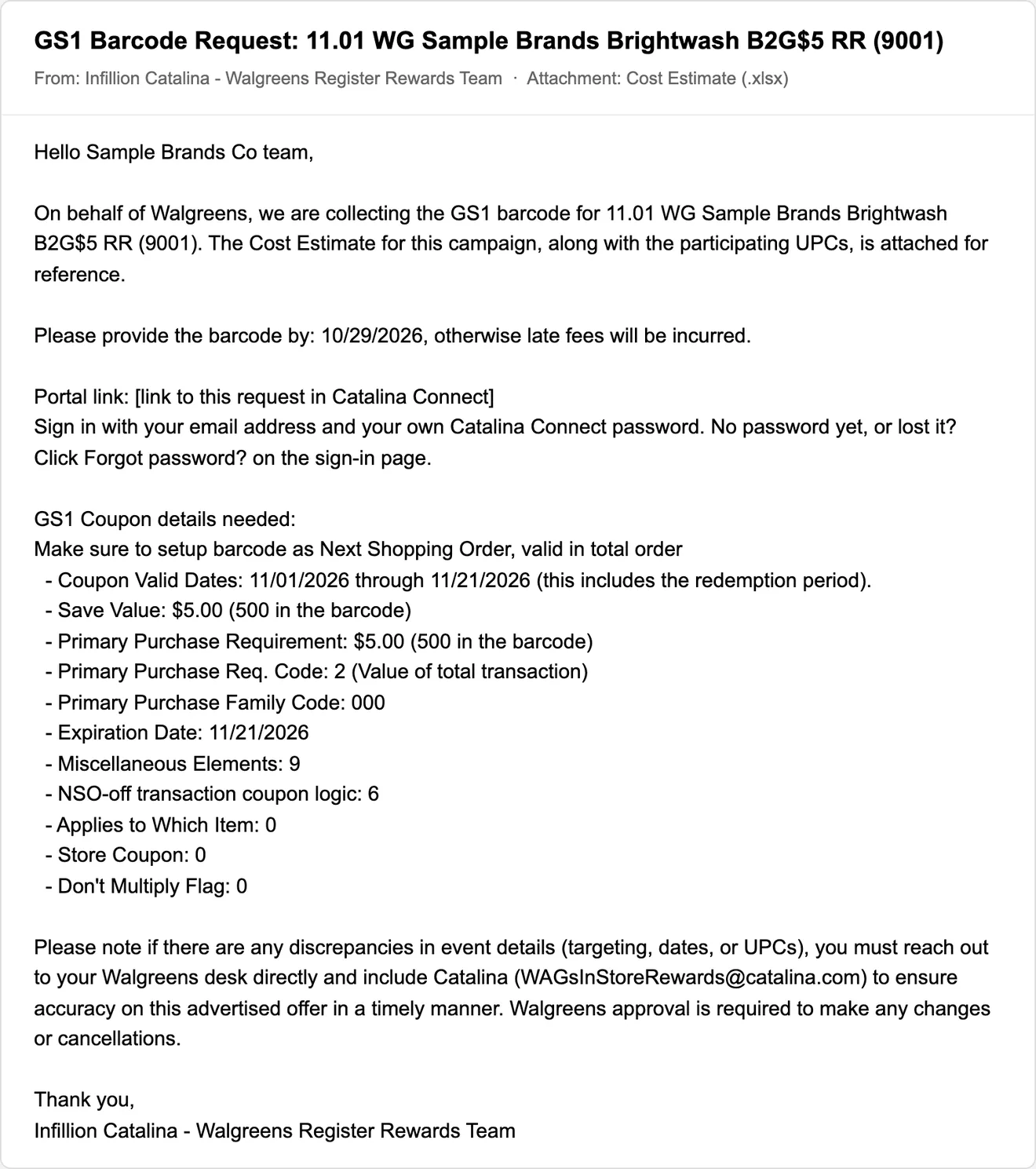
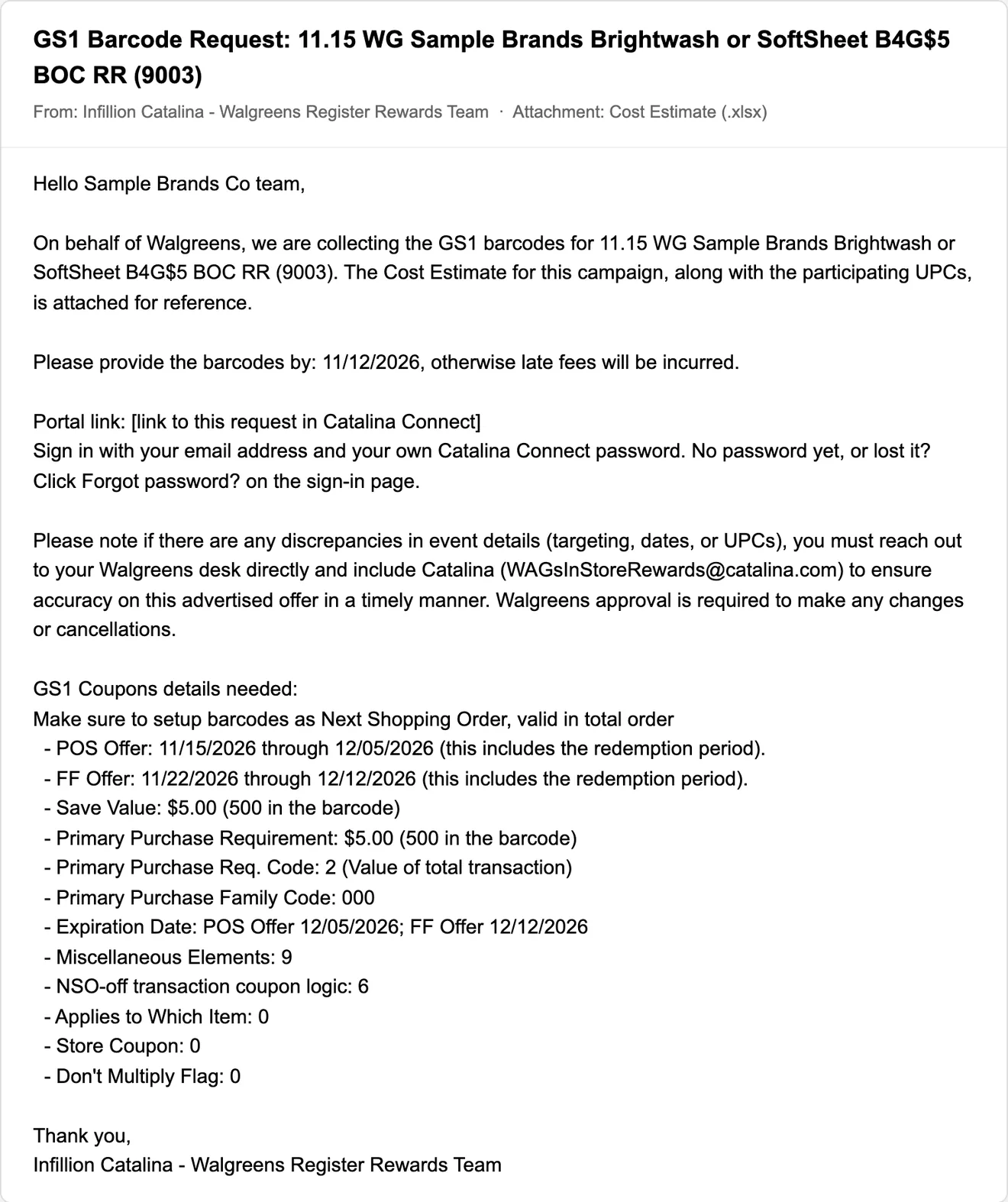
Each request starts with an email from the Infillion Catalina - Walgreens Register Rewards Team. It includes:
- The offer name and its unique 4-digit identifier in the subject line, plus the date the barcode is due.
- The Cost Estimate for the offer, attached, with the participating UPCs on the second tab. You can also download it from the request page.
- A link to the request in Catalina Connect.
- The GS1 coupon details the barcode must carry: valid dates, save value, purchase requirement and codes.
Check the offer details
Confirm the offer save value, purchase requirement, dates & coupon expiry date.
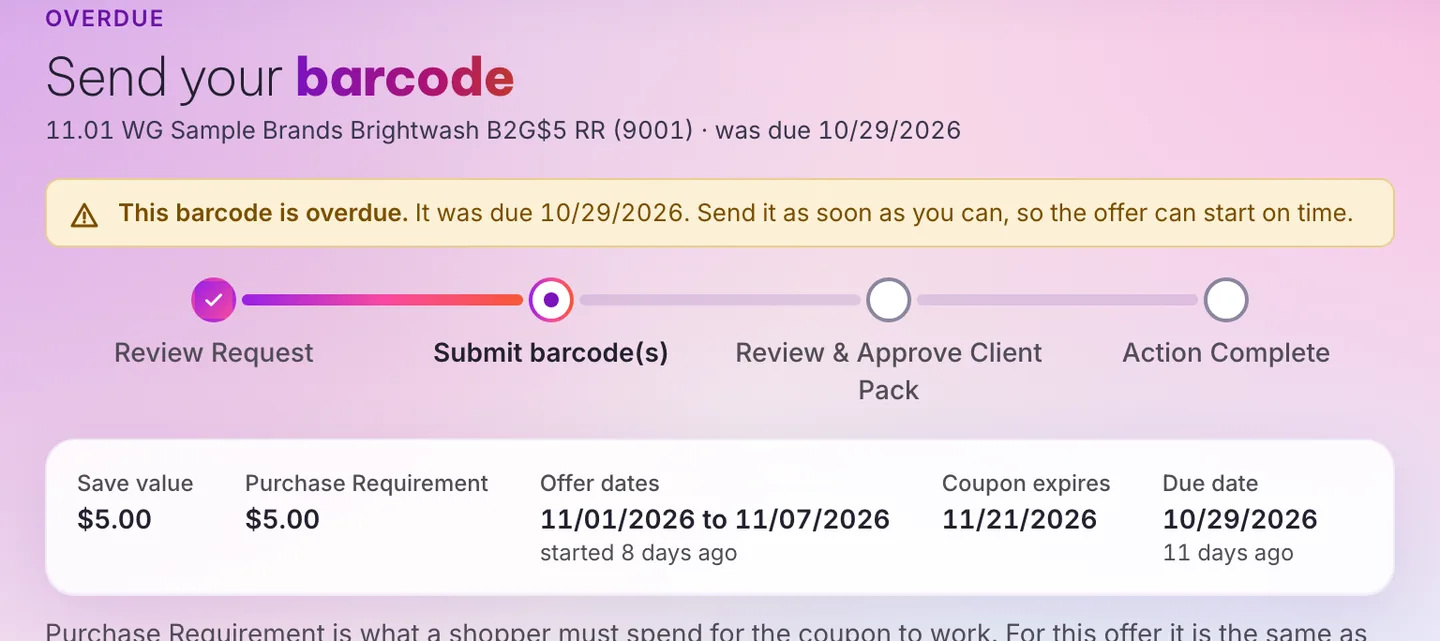
If anything is wrong, do not approve it. Use “Something wrong with this request?” (see Something wrong with a request, below).
Approve the Cost Estimate
The first step of every request is approving the Cost Estimate. You can send the barcode once it is approved.
- Select I approve the Cost Estimate.
- Optional: add notes. They are saved on the request and included if you send the approval to your group.
- Click Continue. The barcode step opens.
Optional: click Send approval to group to email everyone in the request's contact group that the Cost Estimate is approved, with your note. Catalina gets a copy. Nothing is emailed unless you click it, and it can be sent once per revision.
If Catalina revises the request, the Cost Estimate needs approving again.
Something wrong with a request
If the offer details are wrong, open Something wrong with this request? Describe what should change and click Send change request. The request pauses until Catalina sends a corrected version.
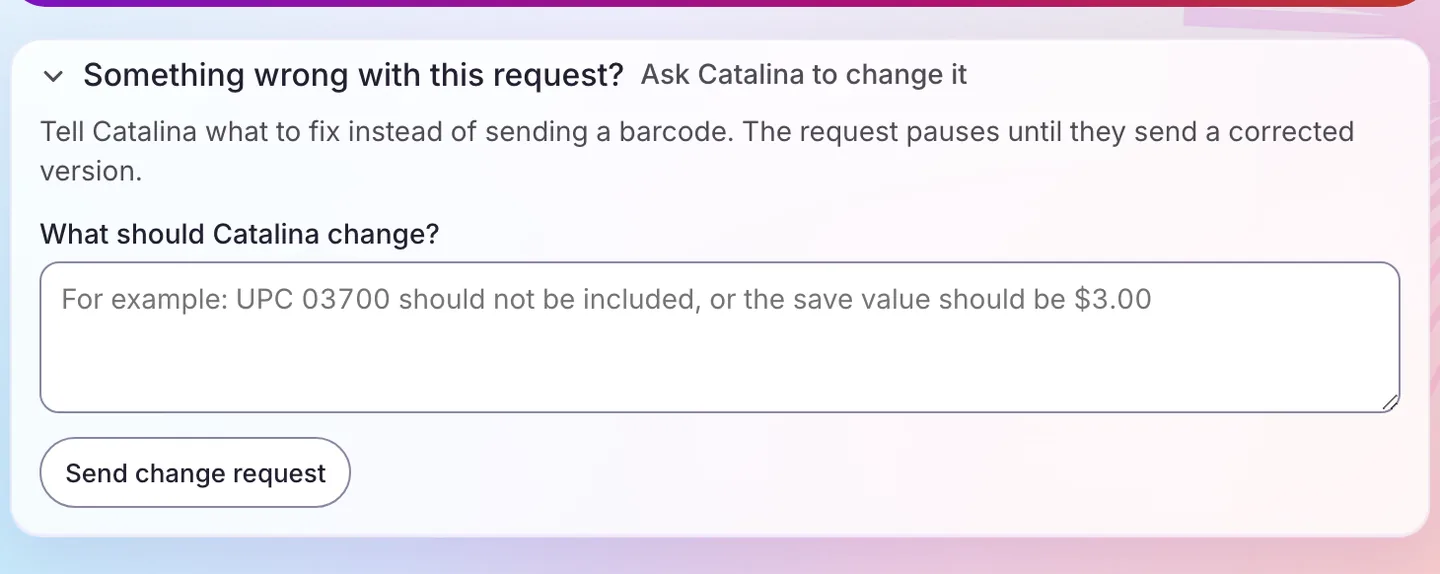
Any changes to targeting, dates or UPCs must go through your Walgreens contact(s). Copy Catalina on communication with Walgreens for visibility and quicker resolution (WAGsInStoreRewards@catalina.com).
A revised request
When Catalina corrects a request, you get a new email marked with the revision number and a list of what changed. It replaces the earlier one: anything sent for the earlier version no longer counts.
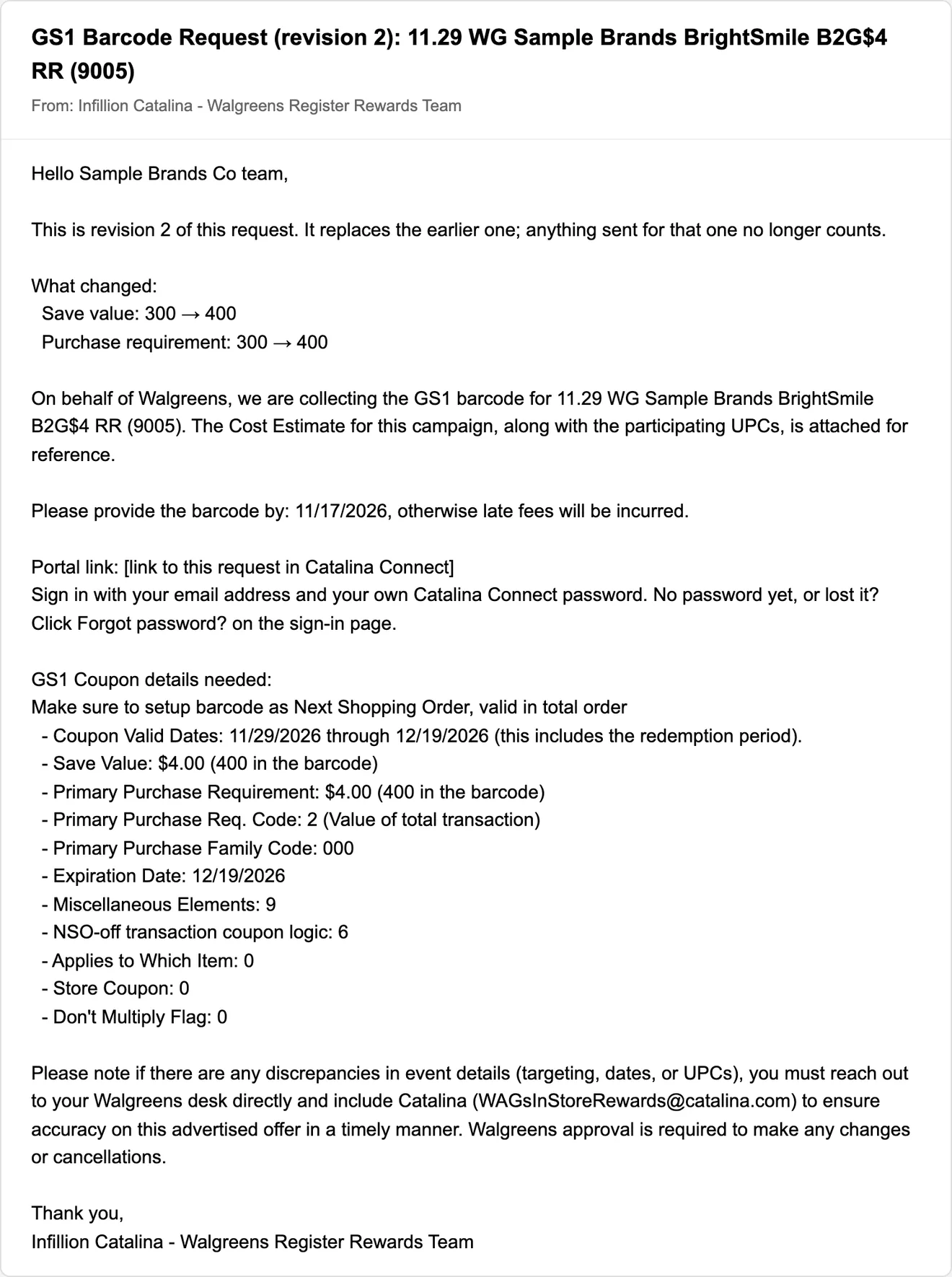
The request page shows the same list at the top. Send a barcode that matches the new details.
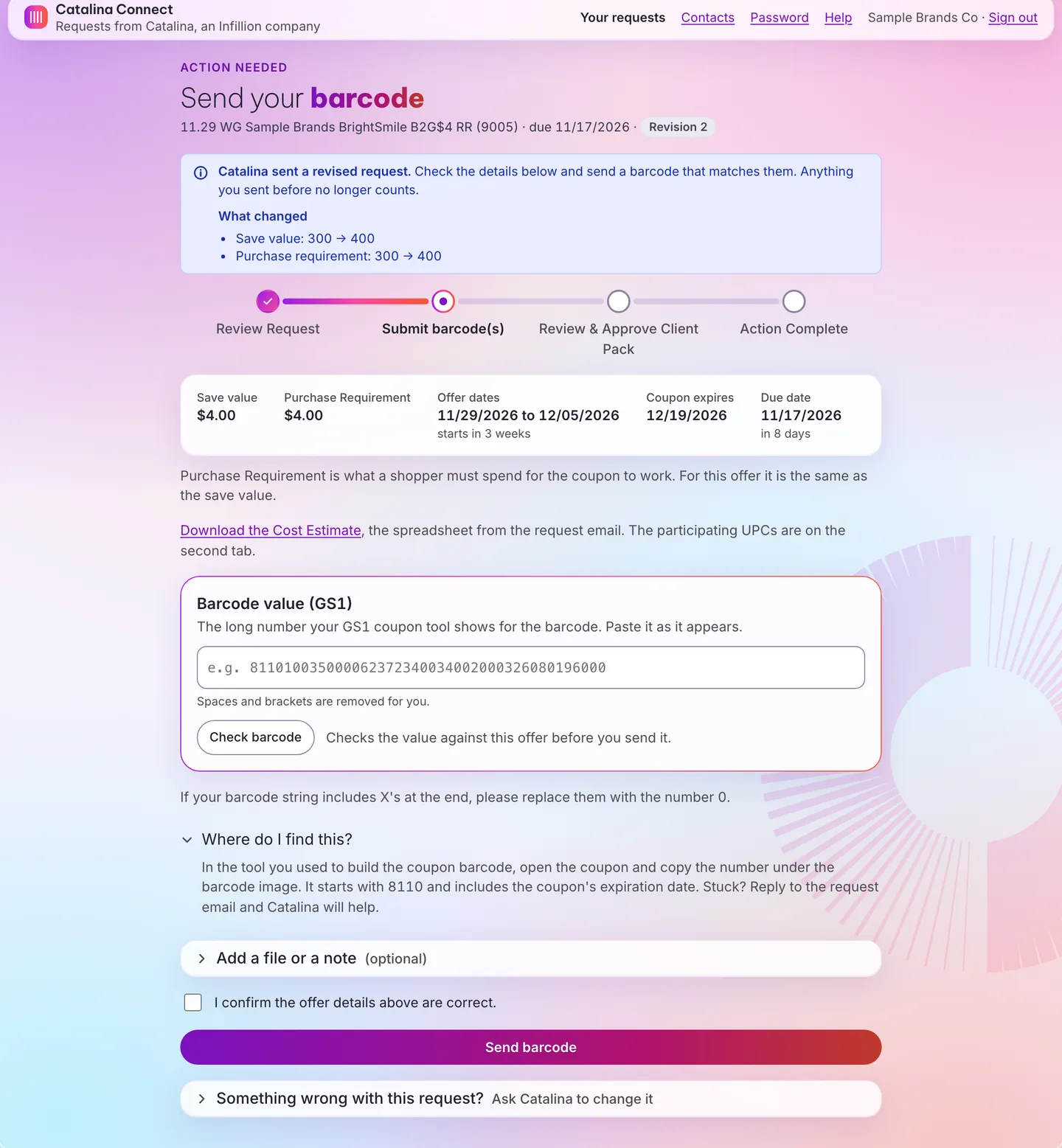
A withdrawn request
If Catalina withdraws a request, its link shows a “This request was withdrawn” message. No action is needed from you. If you think it is a mistake, reply to the email from Catalina.
Part 3. Submitting your barcode
Submit your barcode
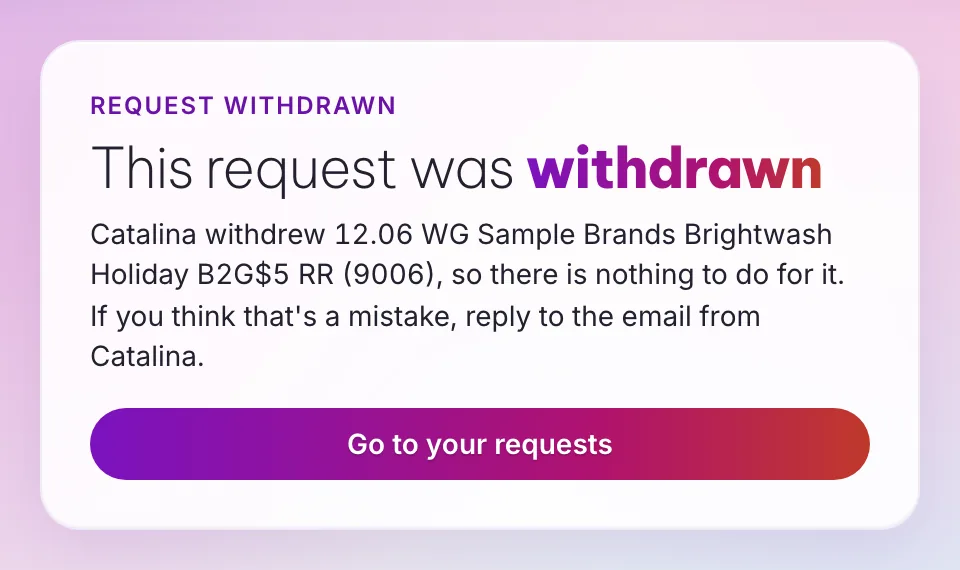
- If you use a Clearinghouse-provided GS1 coupon tool, open the coupon and copy the entire barcode string: a long number under the barcode image. It starts with 8110.
- Paste it into Barcode value (GS1). Spaces and brackets are removed for you.
- Click Check barcode.
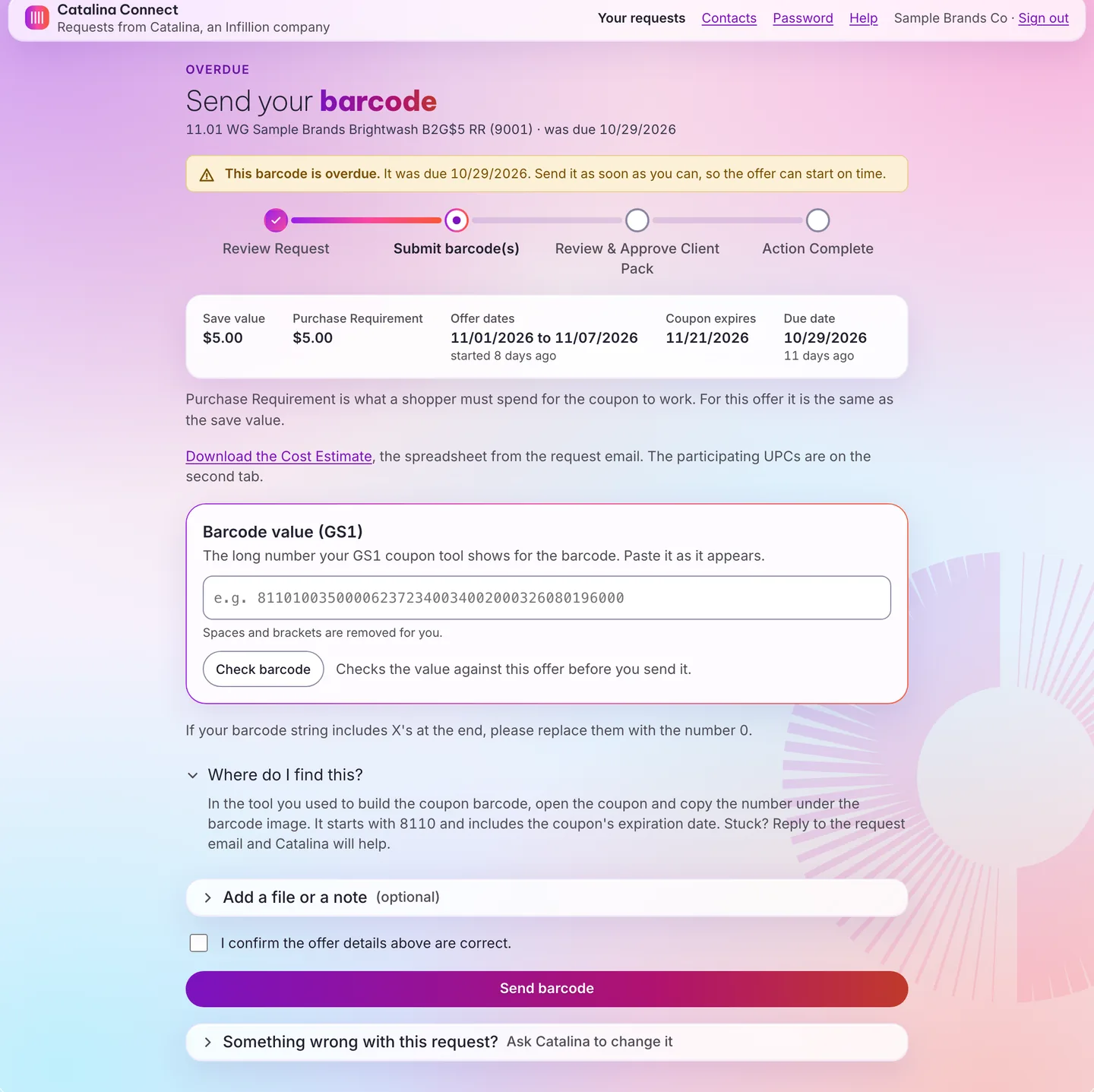
When every check passes, you see a green message and can send the barcode.

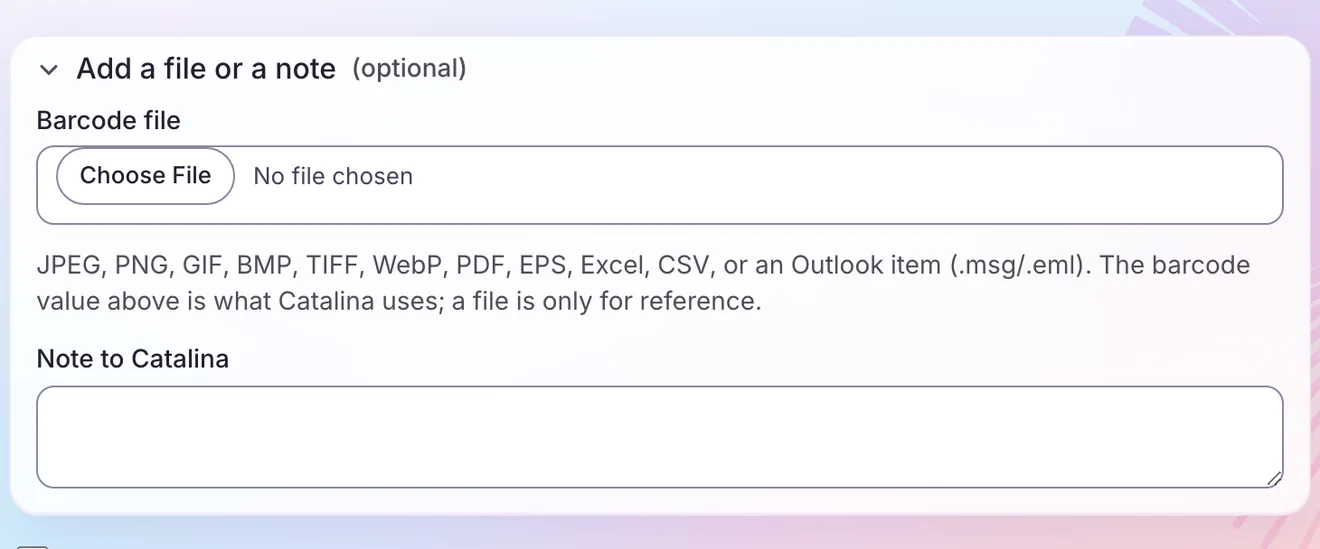
Optional: open Add a file or a note to attach the barcode image or file, or to leave a note for Catalina. Catalina uses the barcode value you pasted for set-up. Any file you attach is for reference only.
When a check fails
Read the original request email again first: it has all the details needed to create the GS1 barcode.
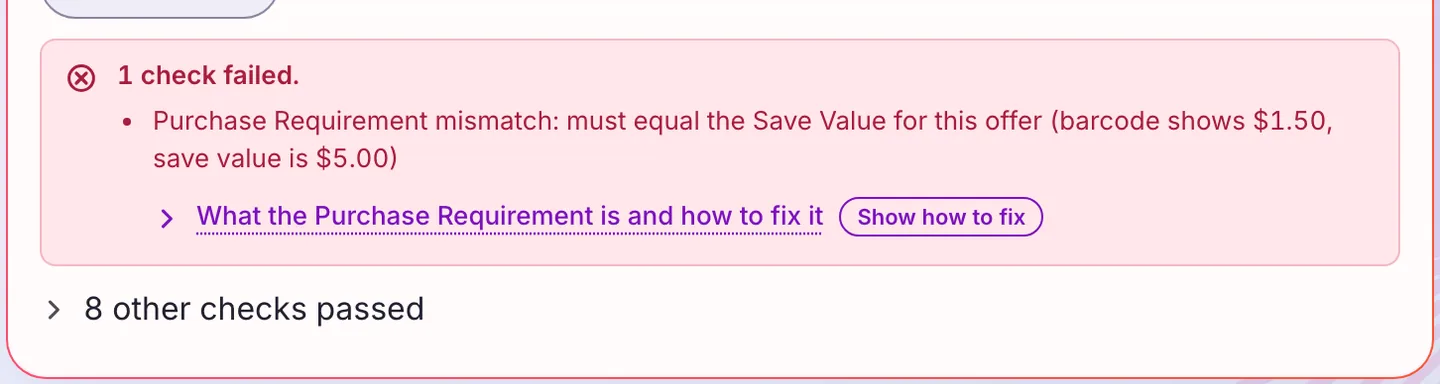
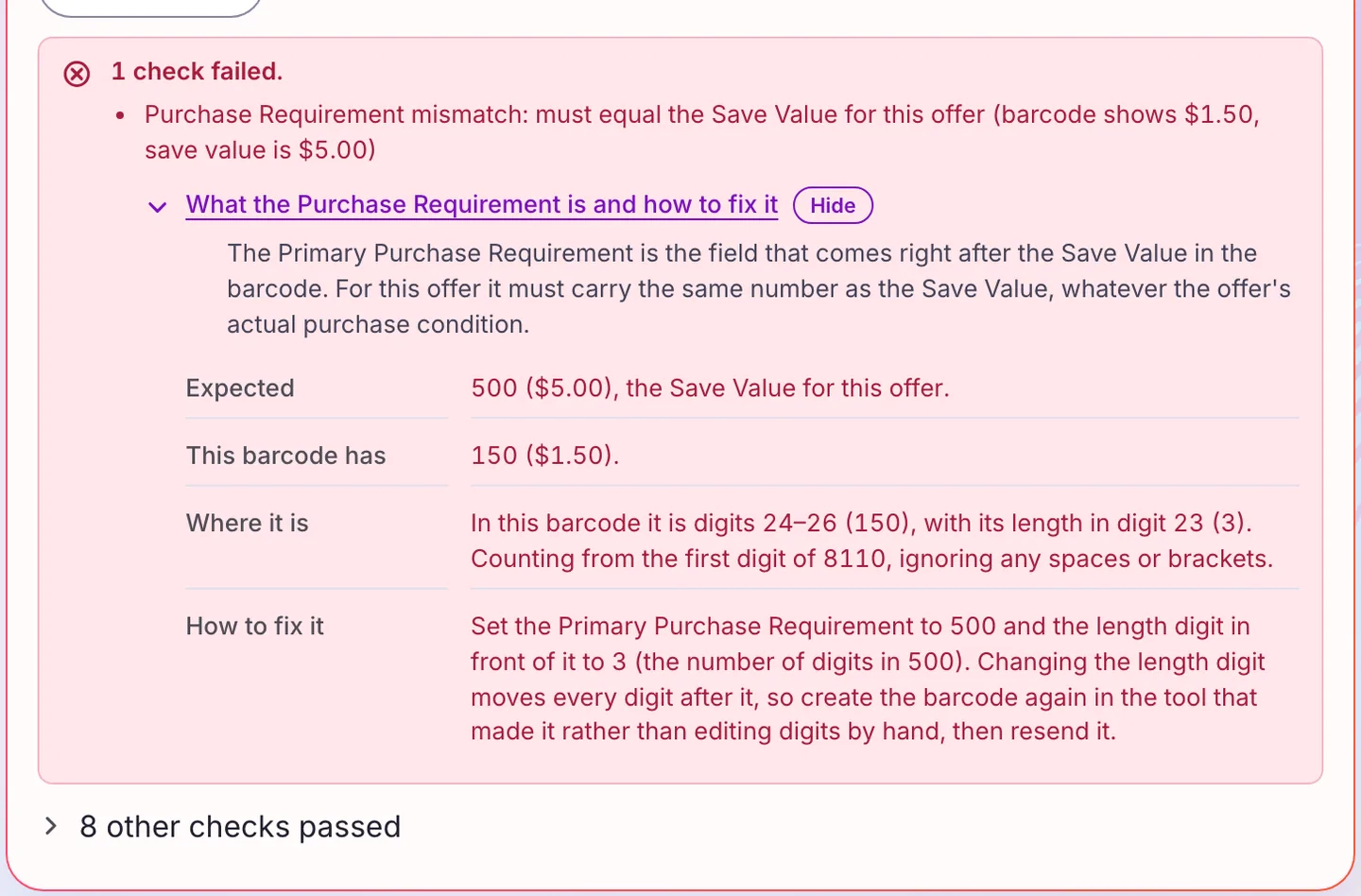
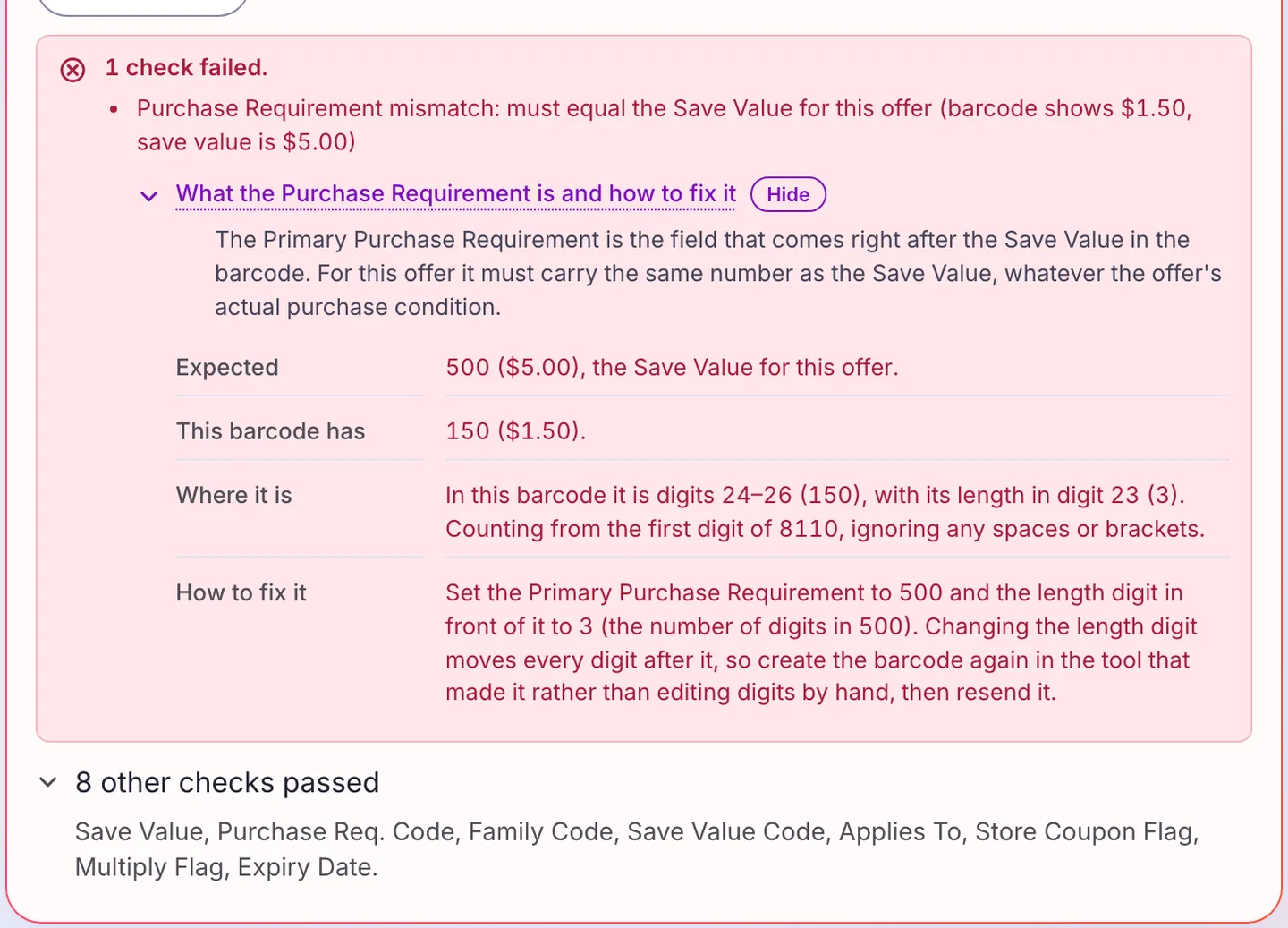
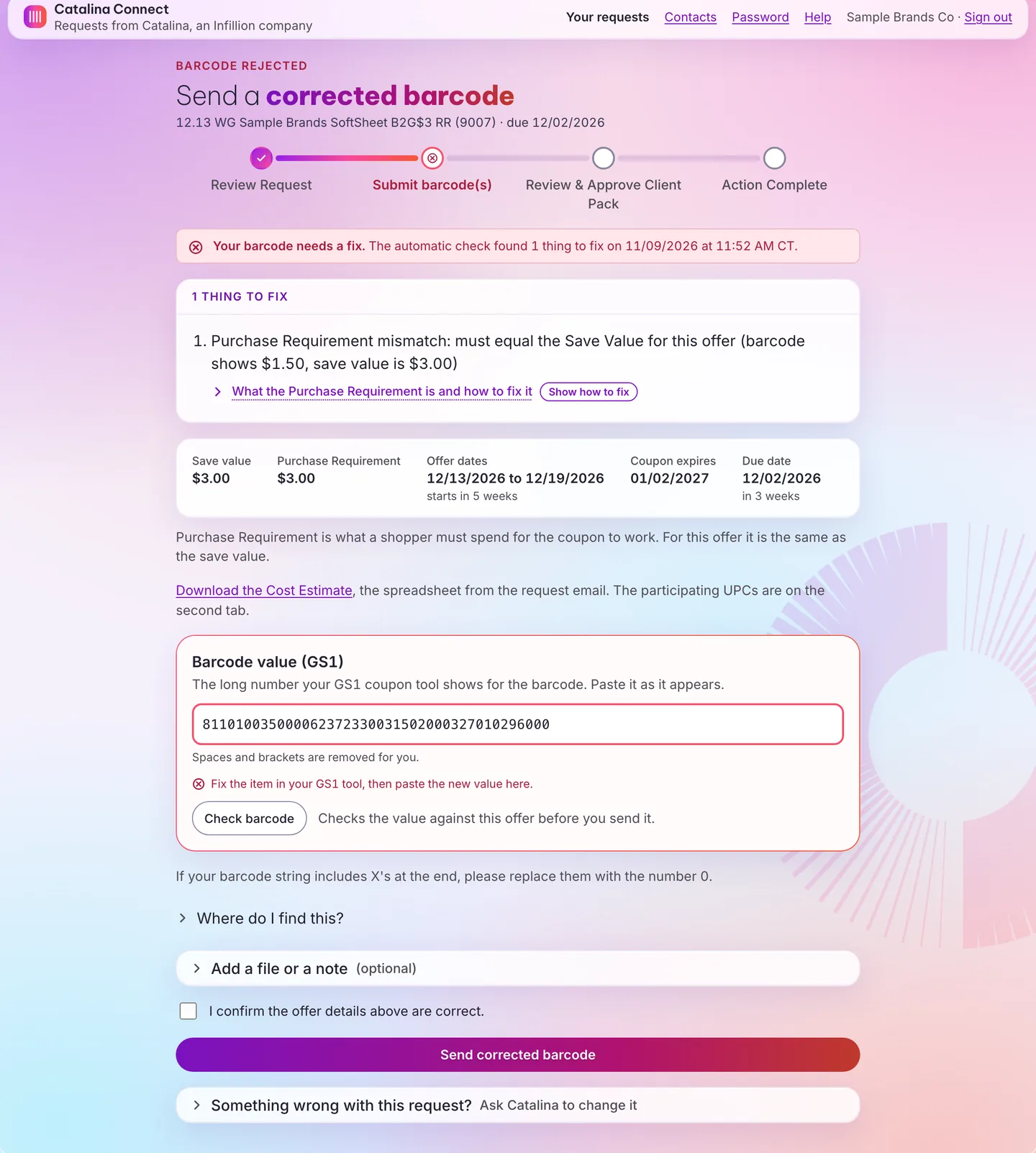
Each failed check shows what your barcode contains and what the offer needs. Click Show how to fix under it to see what the field is, where it sits in the barcode, and how to correct it. Every check is described in Part 6.
Offers with two barcodes
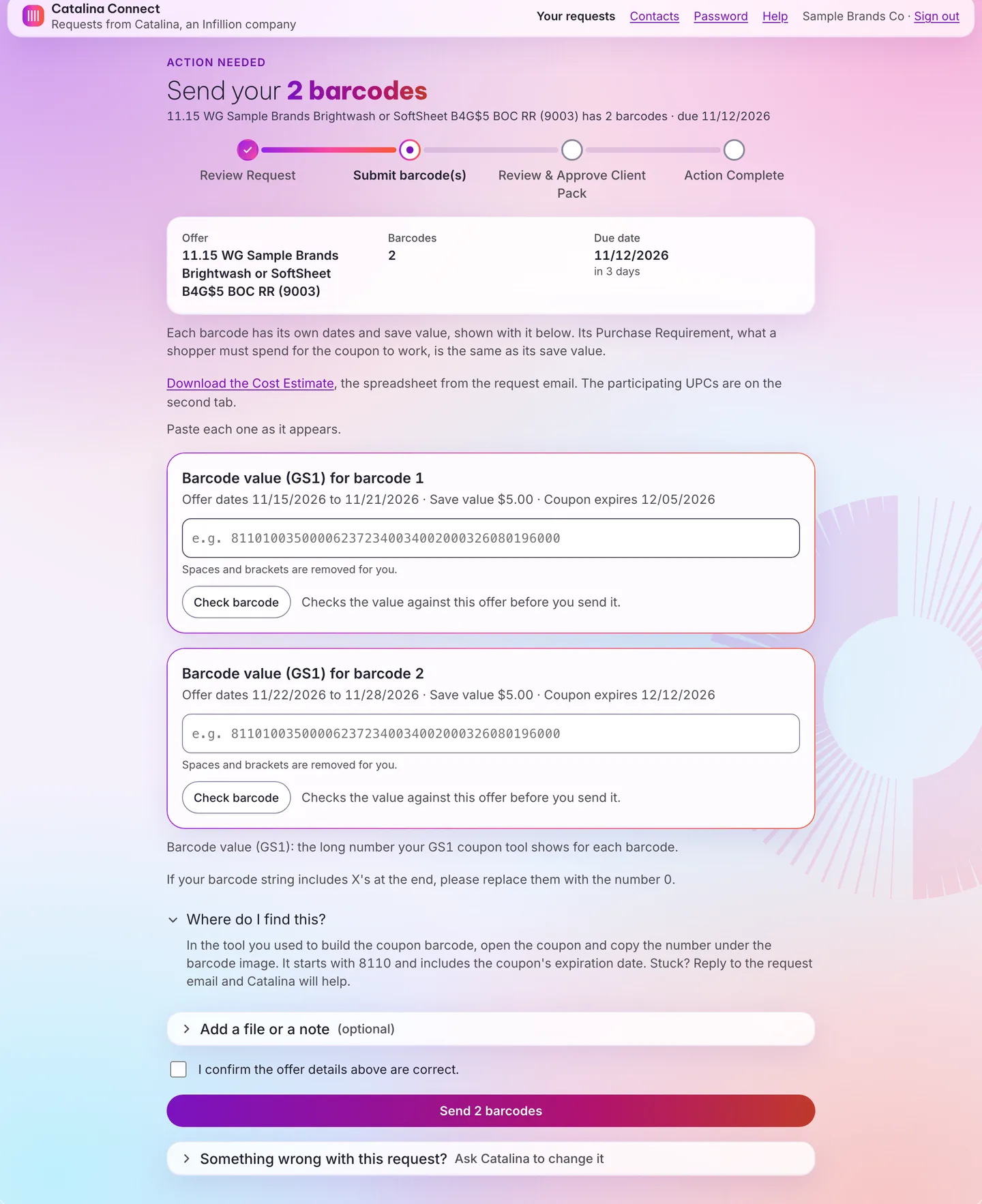
Some offers need two barcodes, one for each offer column in the Cost Estimate. For example, a register offer (POS) and a circular offer (FF). The email lists both, each with its own dates.
The request page has a field for each barcode, with that barcode’s dates and save value above it. Paste and check each one. The Send button submits both together.
Send your barcode
When every check passes, click Send barcode.
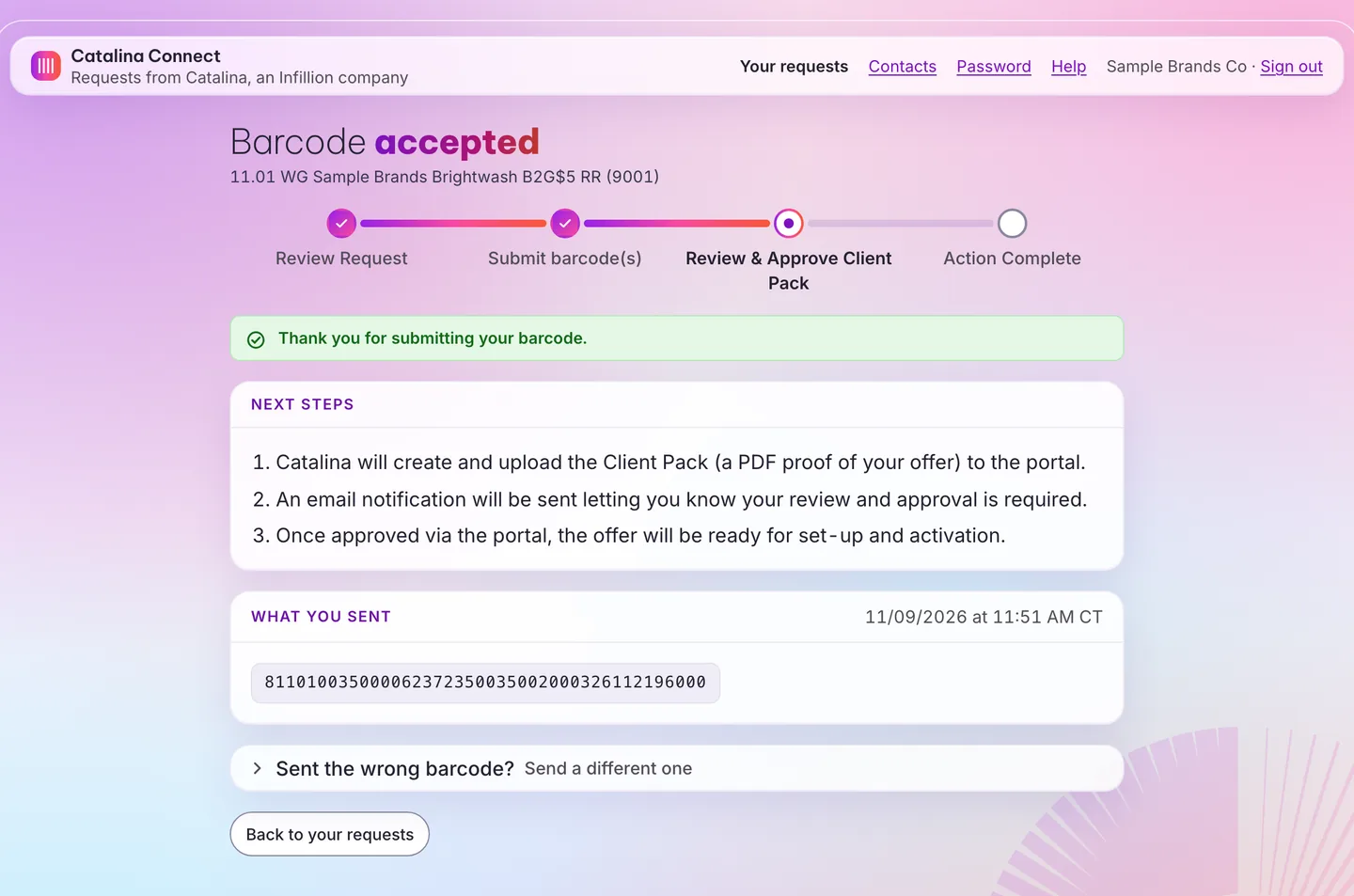
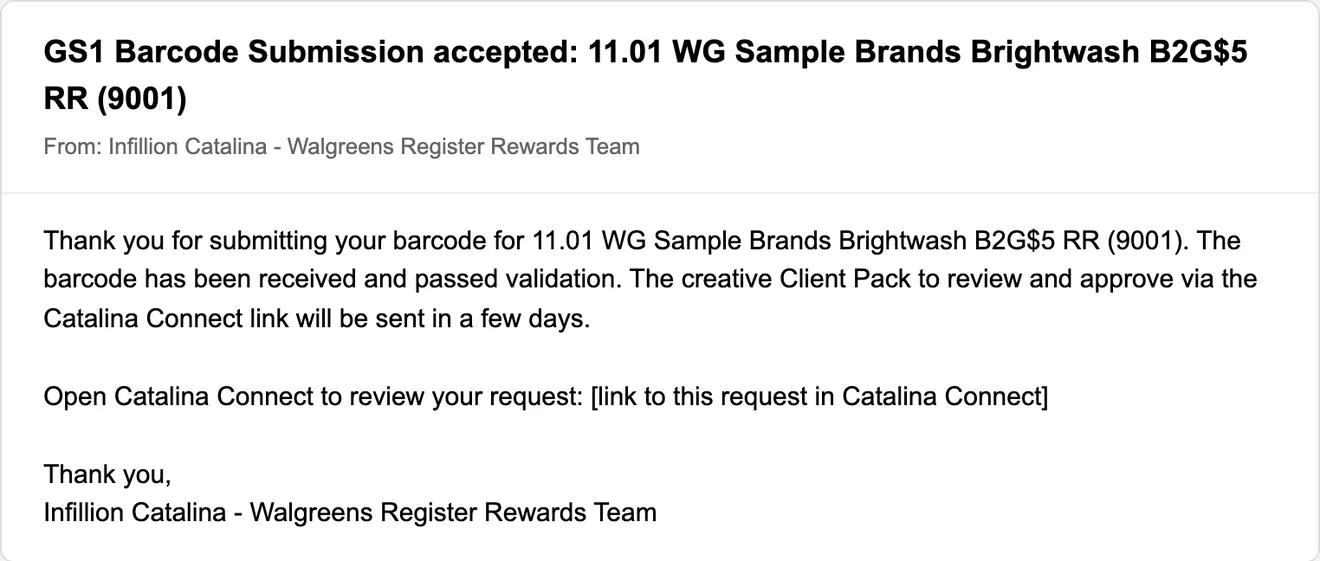
You will see Barcode accepted, a thank-you note and the next steps, and you will get a confirmation email. Catalina then builds the Client Pack and emails you when it is ready to review.
Sending a corrected or different barcode
If you click Send while a check is failing, Catalina Connect asks first. Go back and fix it unless you are sure.
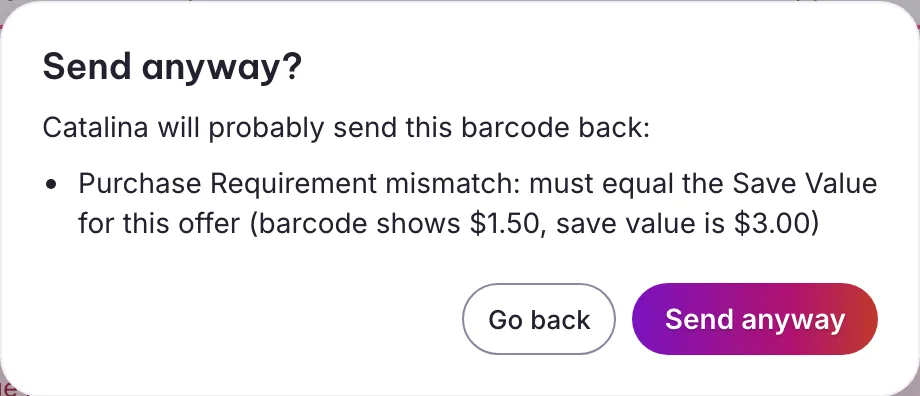
If you send it anyway, the request shows Barcode rejected with what to fix. Paste the corrected value and click Send corrected barcode.
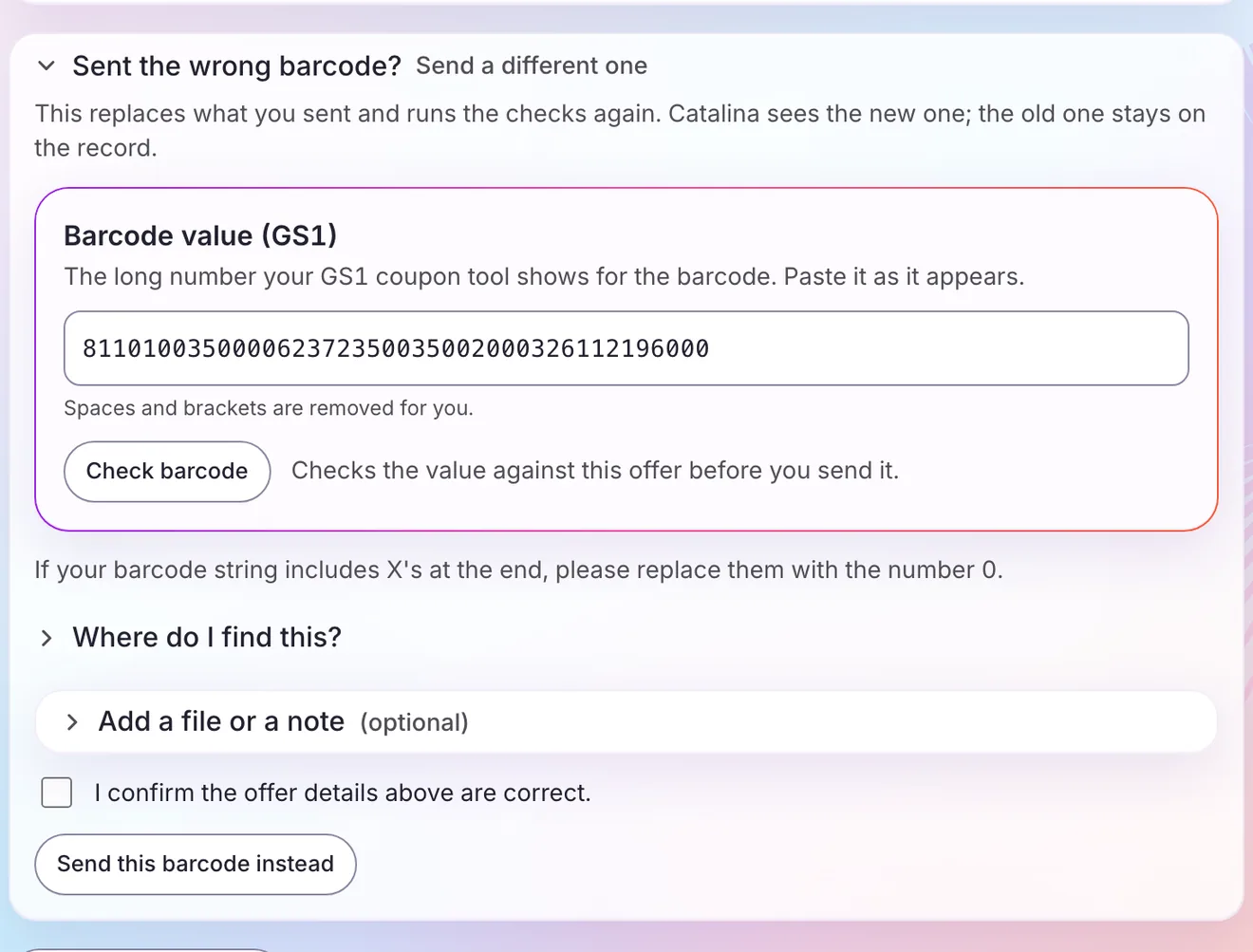
Sent the wrong barcode, even one that passed? Open Sent the wrong barcode? on the request page, paste the right one and click Send this barcode instead. Catalina sees the new one.
Reminders and overdue requests
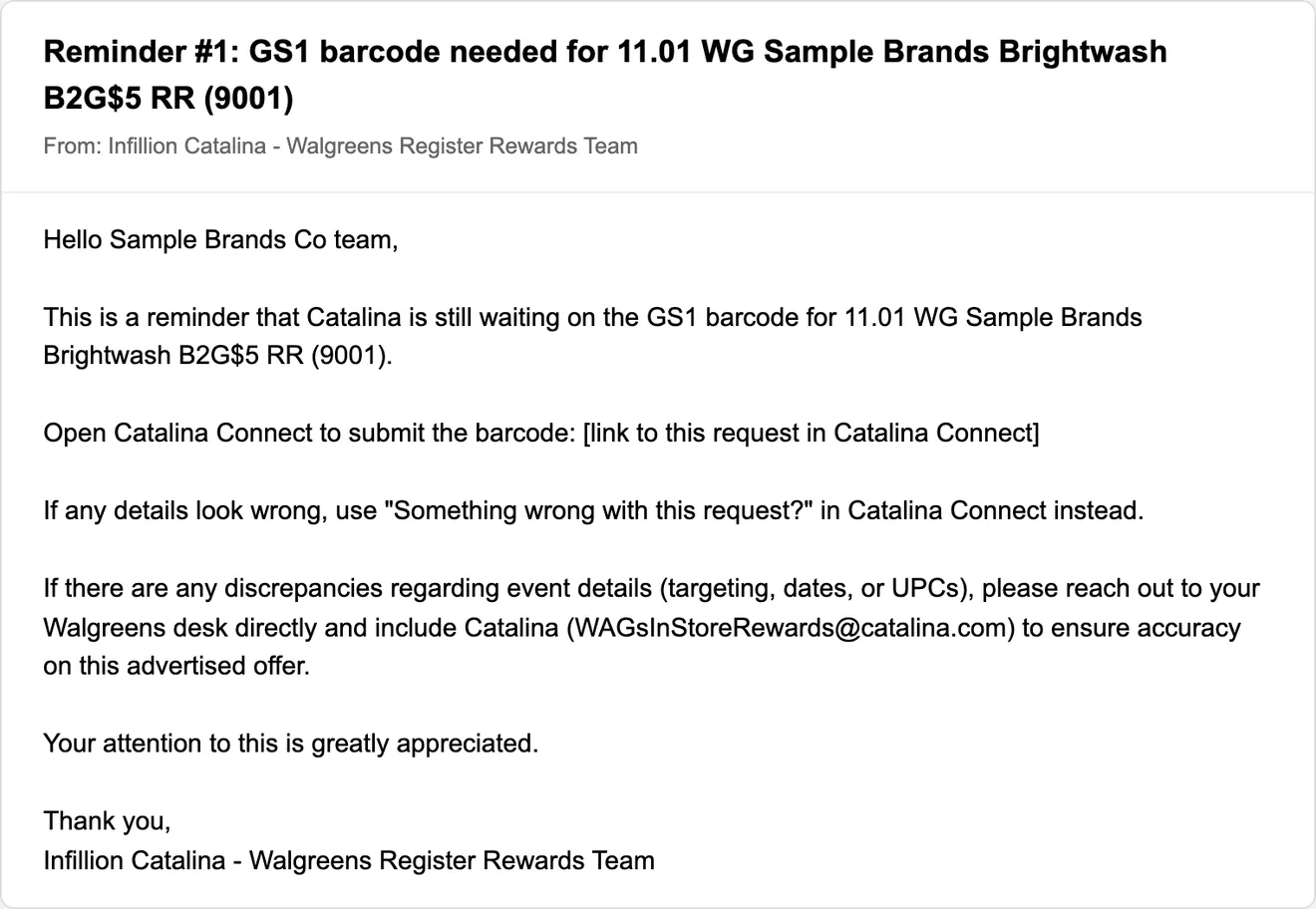
If a barcode has not arrived, Catalina Connect sends reminders to the contact group. If the Cost Estimate is not approved yet, the reminder asks you to approve it first. From the fourth reminder, once the due date has passed, the subject starts with ACTION NEEDED TODAY.
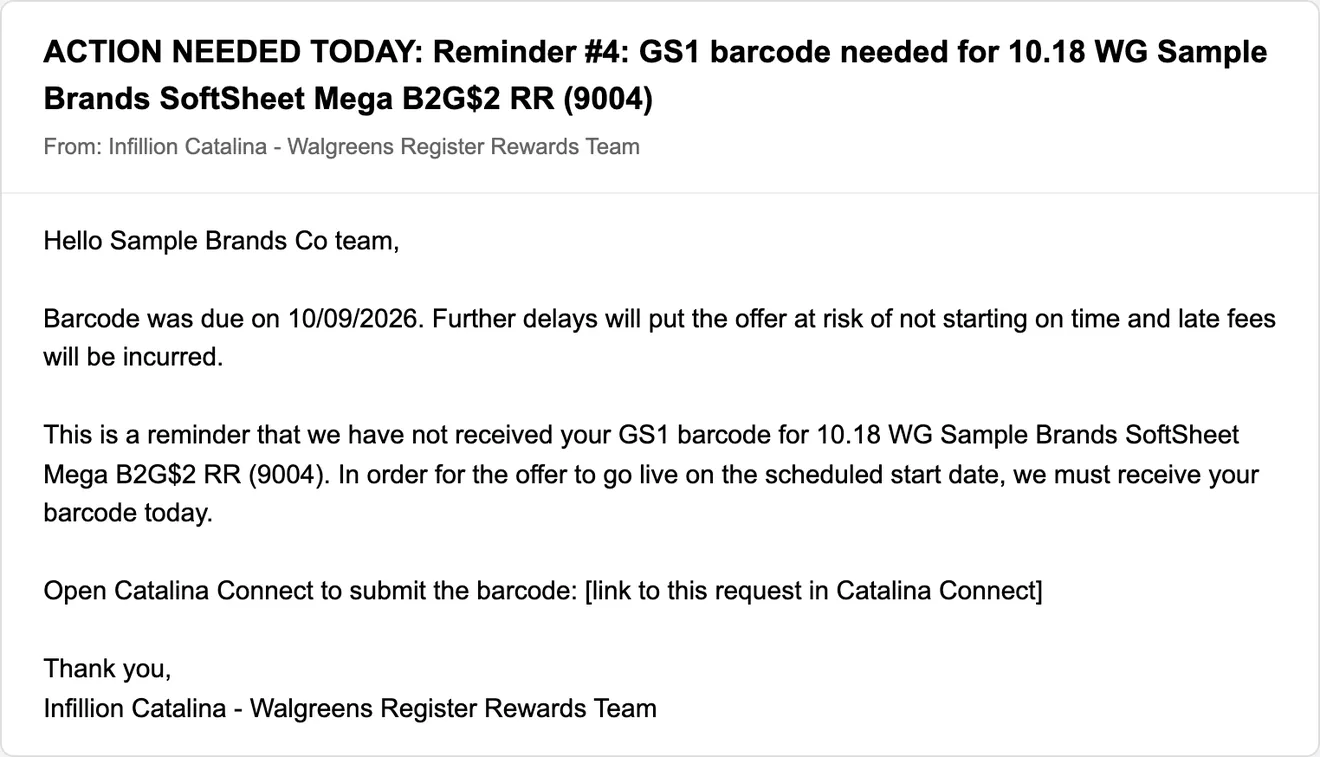
An overdue request is marked Overdue in Your requests and on the request page. Please send the barcode as soon as you can so the offer can start on time and to avoid late fees.
Part 4. Approving the Client Pack
Review and approve
When the Client Pack is ready, you get an email asking you to approve it.
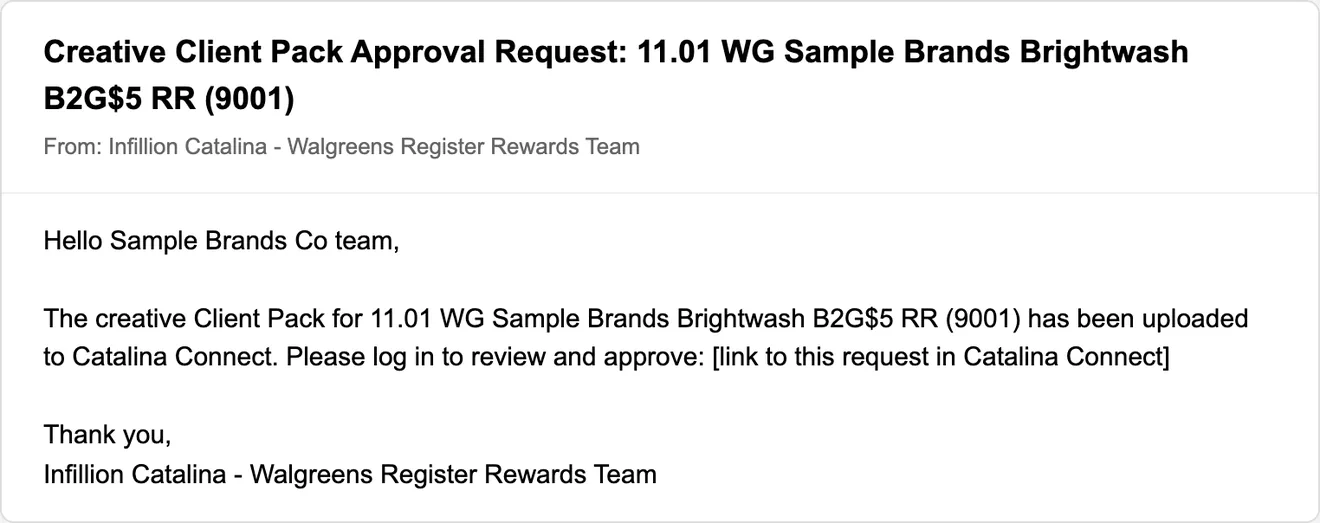
- Open the link and sign in if prompted.
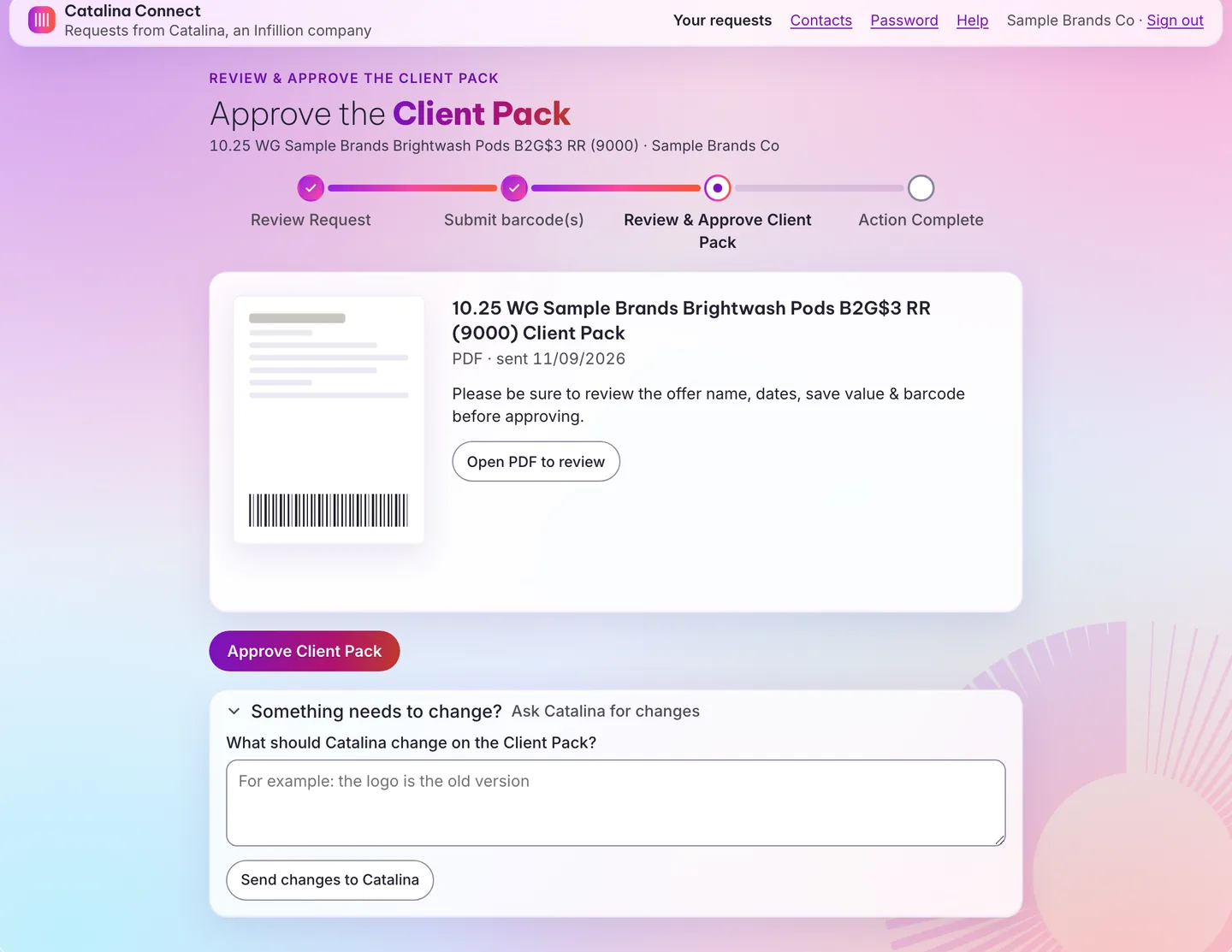
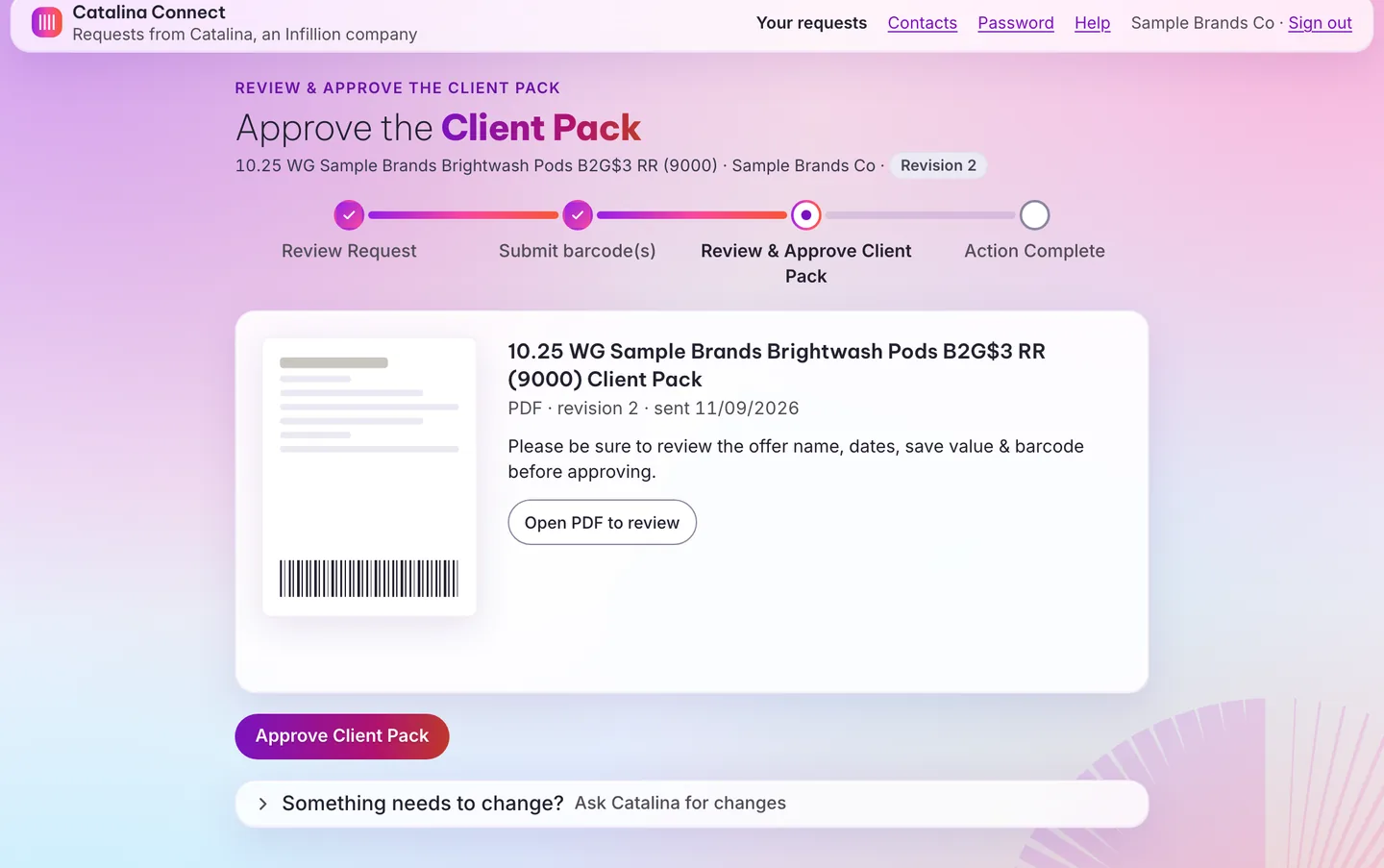
- Click Open PDF and check the offer name, save value, dates, and that the barcode scans correctly. You can download the PDF to send to Inmar or another team for scan testing.
- If it is right, click Approve Client Pack, then confirm.
Optional: add a note about the Client Pack under Your note, for your own records or your internal approval. It sends nothing. You can change it until the Client Pack is approved, then it is locked.
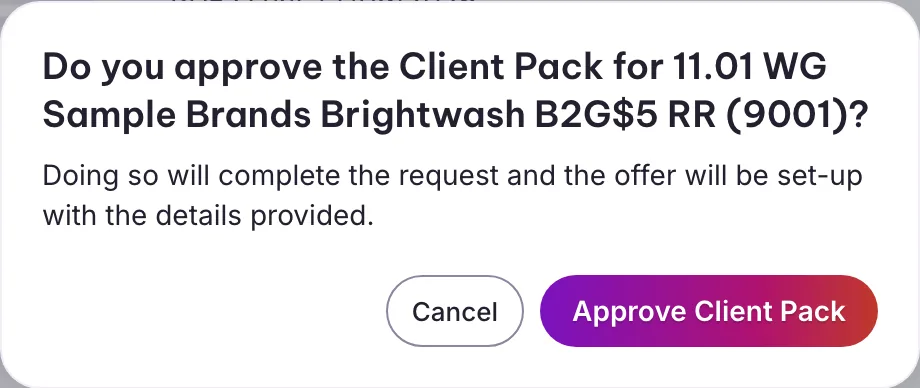
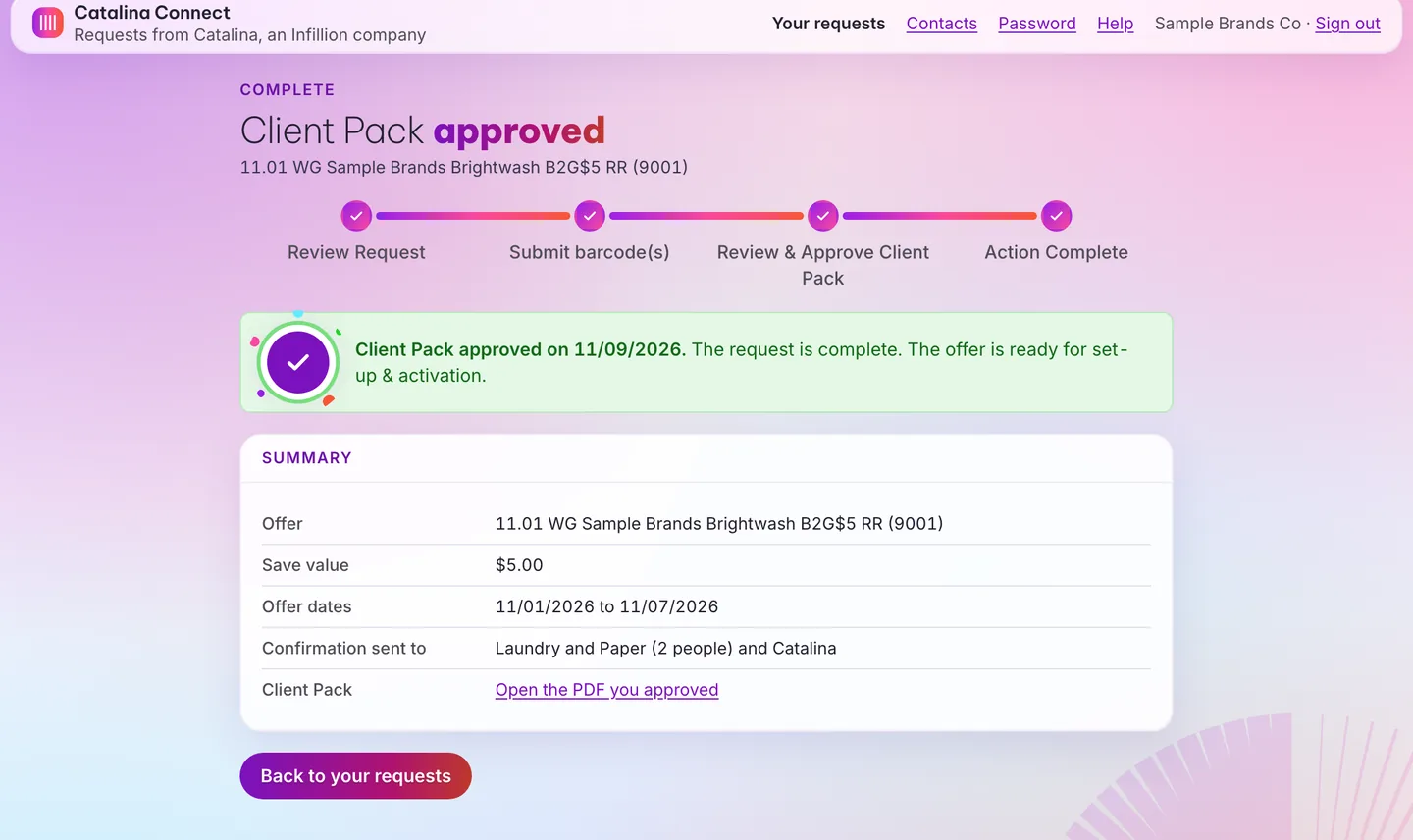
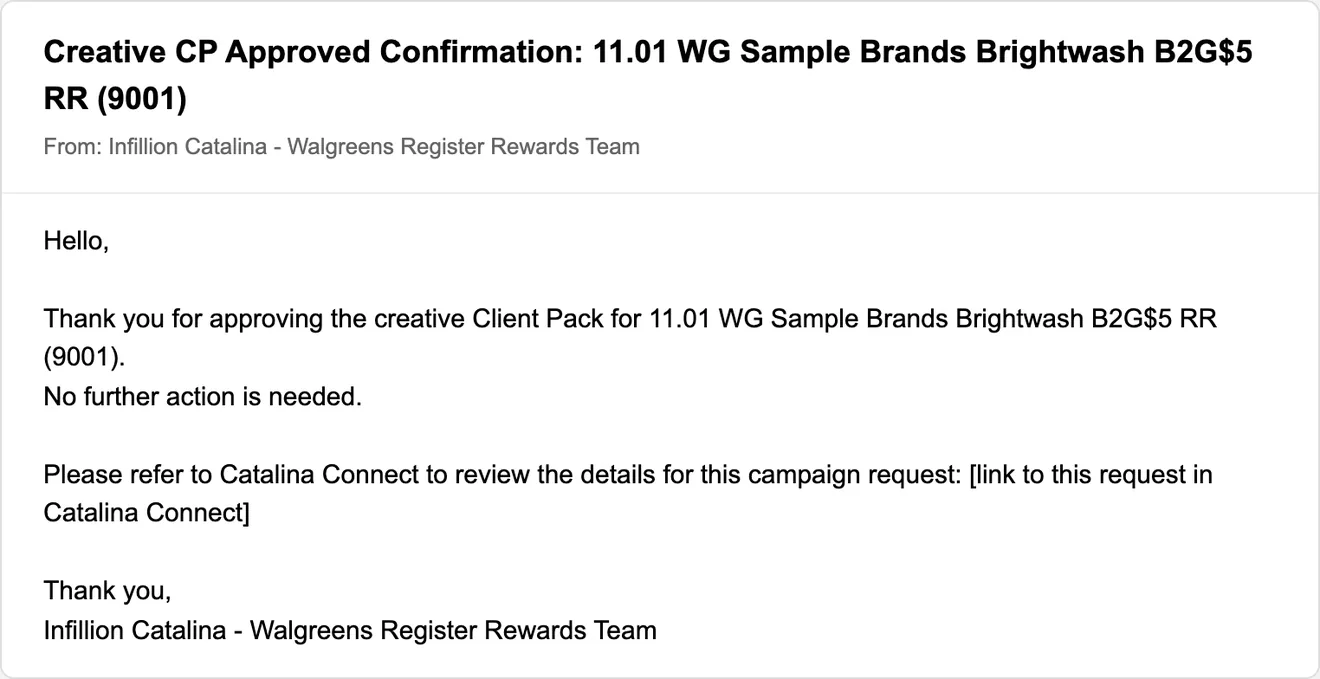
The request is now complete and the offer is ready for set-up & activation. Everyone in the contact group, and Catalina, gets a confirmation email. No further action is needed from you. Catalina launches the offer on its planned start date.
Ask for changes to the Client Pack
- Open Something needs to change?
- Describe what should change.
- Click Send changes to Catalina.
Catalina revises the Client Pack and emails you when the next revision is ready. The page shows the revision number.
Part 5. Your account
Your requests
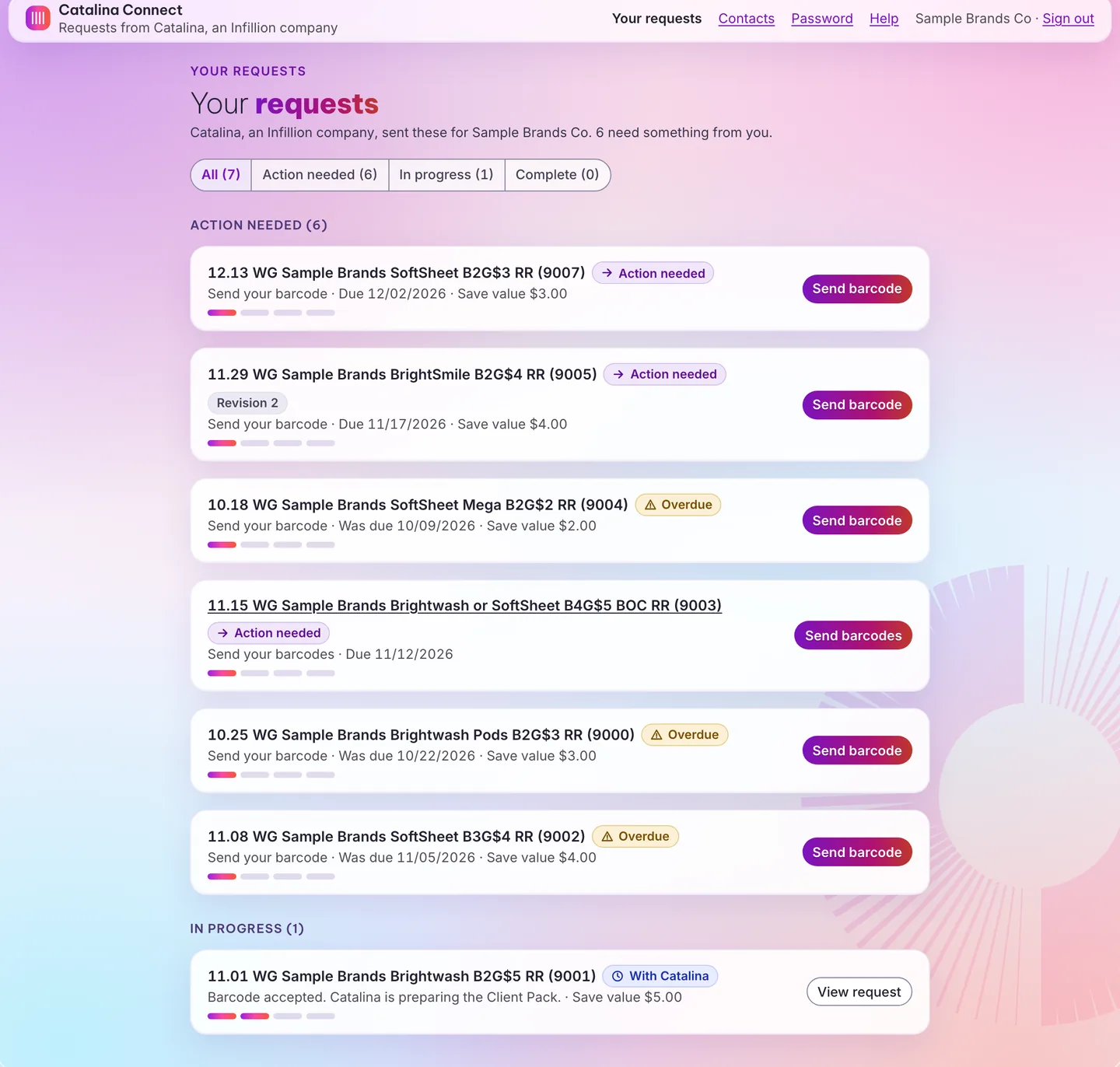
Click Your requests at the top of any page to see the requests sent to your contact groups (every request for your company if you are in the All-access group), grouped by what needs doing: Action needed, In progress and Complete. Use the buttons above the list to show just one of them. The labels are explained in Part 6.
Contact groups
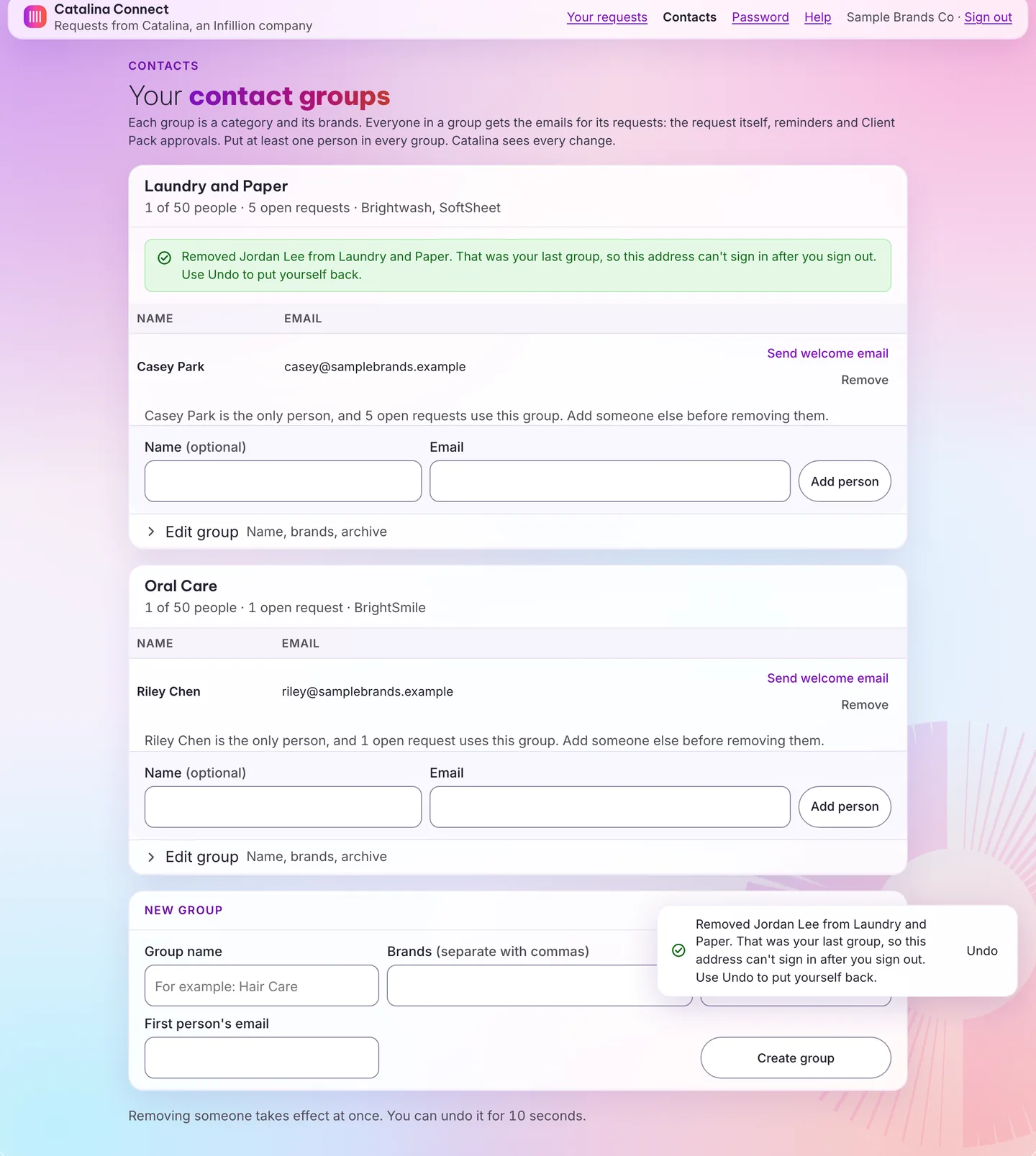
Click Contacts. A group is a product category and its brands. Everyone in a group receives the emails for its requests: the request, reminders and Client Pack approvals. You see only the requests sent to your own groups.
All-access group: Catalina can make one of your groups the All-access group. Everyone in it sees every request for your company, whichever group it went to. To set one up or change it, contact Catalina.
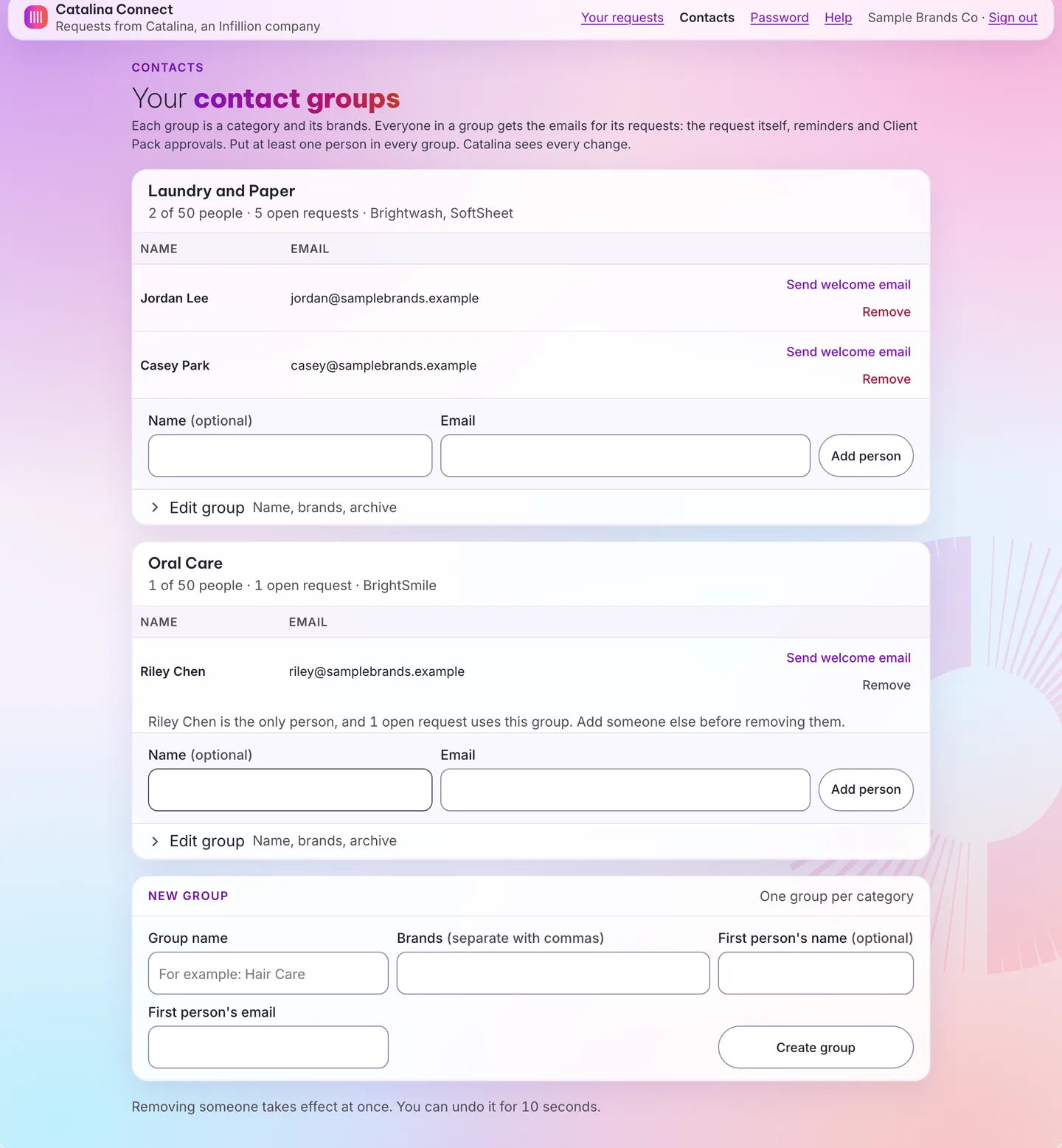
- Add someone: enter their email (and name) under the group and click Add person.
- Remove someone: click Remove next to them. You can undo it for 10 seconds.
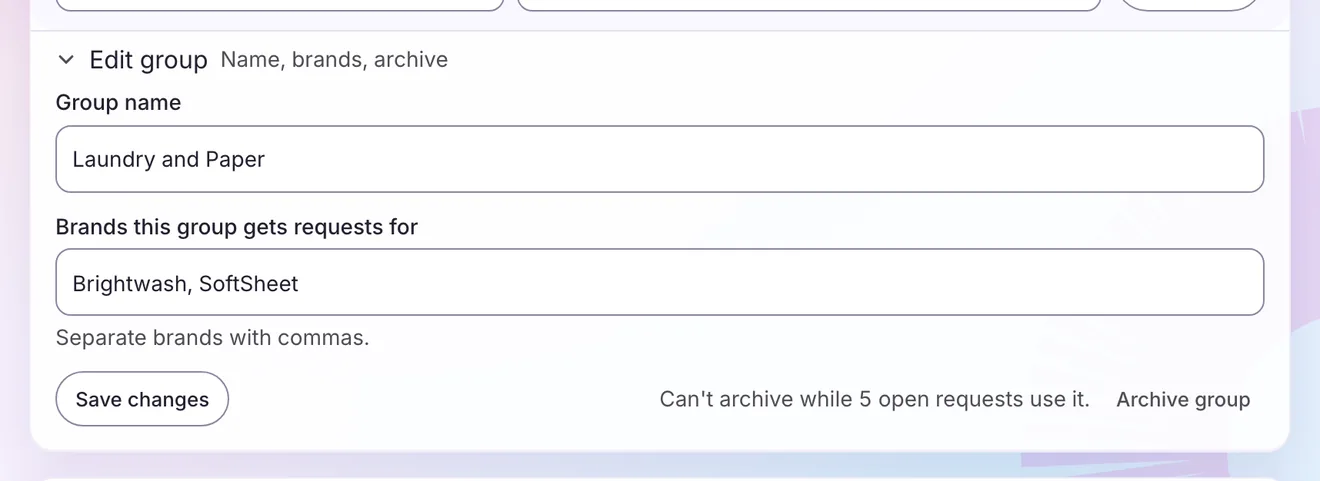
- Rename a group or change its brands: open Edit group.
- Add a category: fill in New group at the bottom, with the first person’s email.
- Every group keeps at least one person. To retire a group, archive it in Edit group.
Passwords
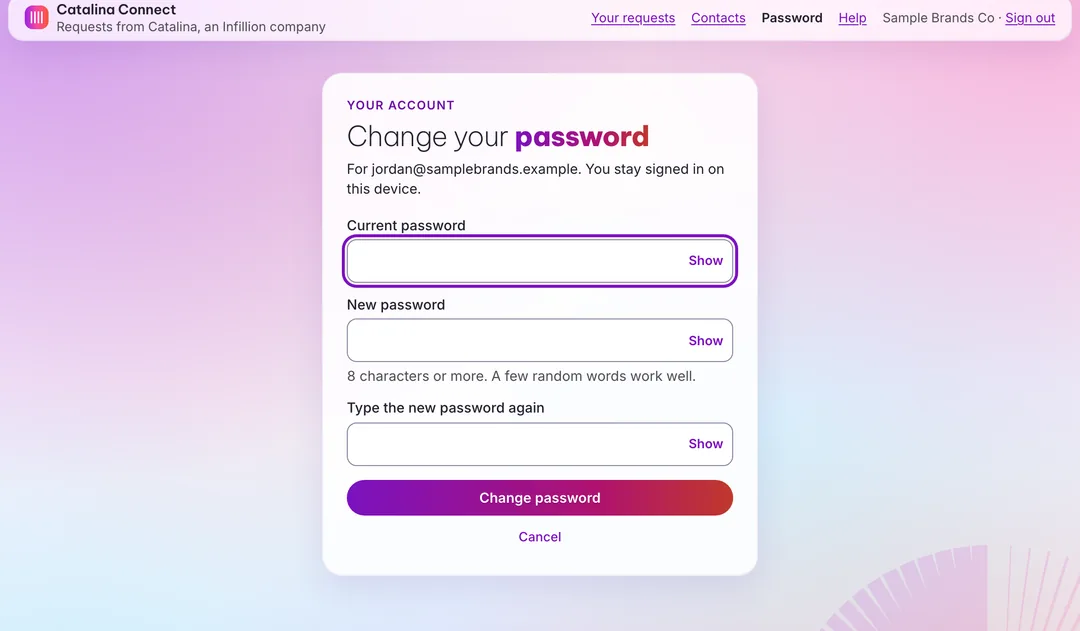
Change your password: click Password at the top, then enter your current password and the new one twice. Your other devices are signed out; your colleagues are not affected.
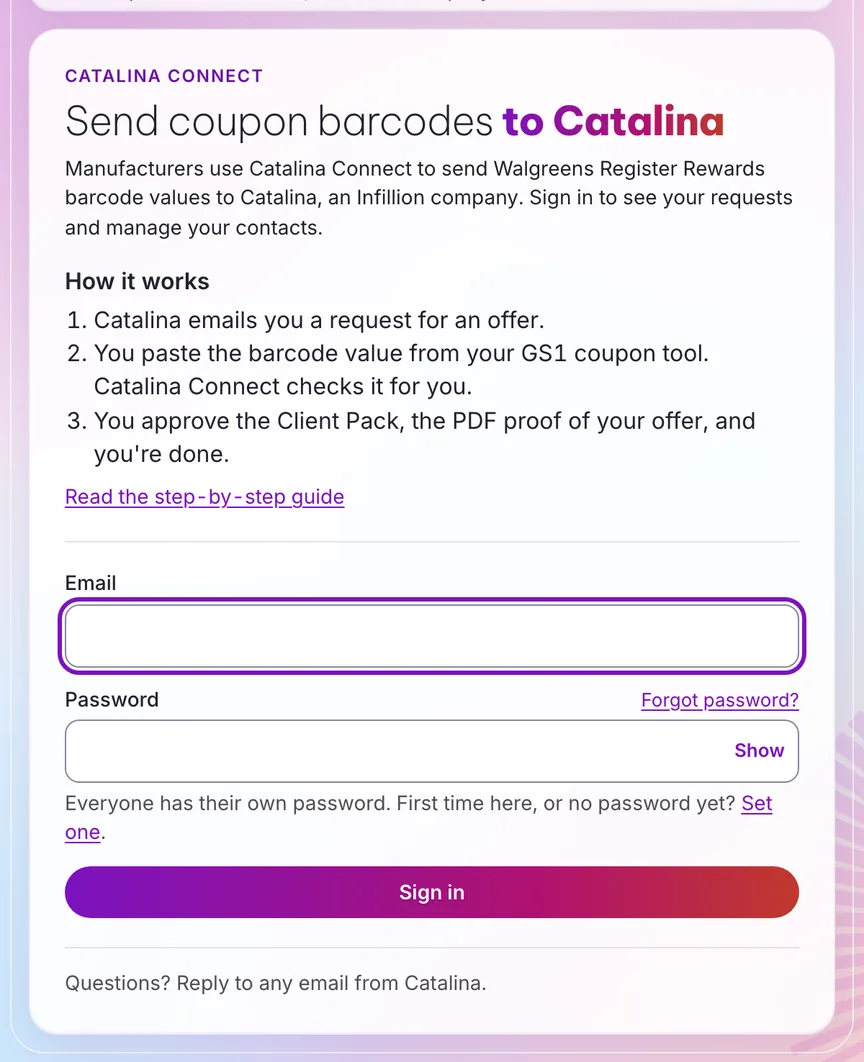
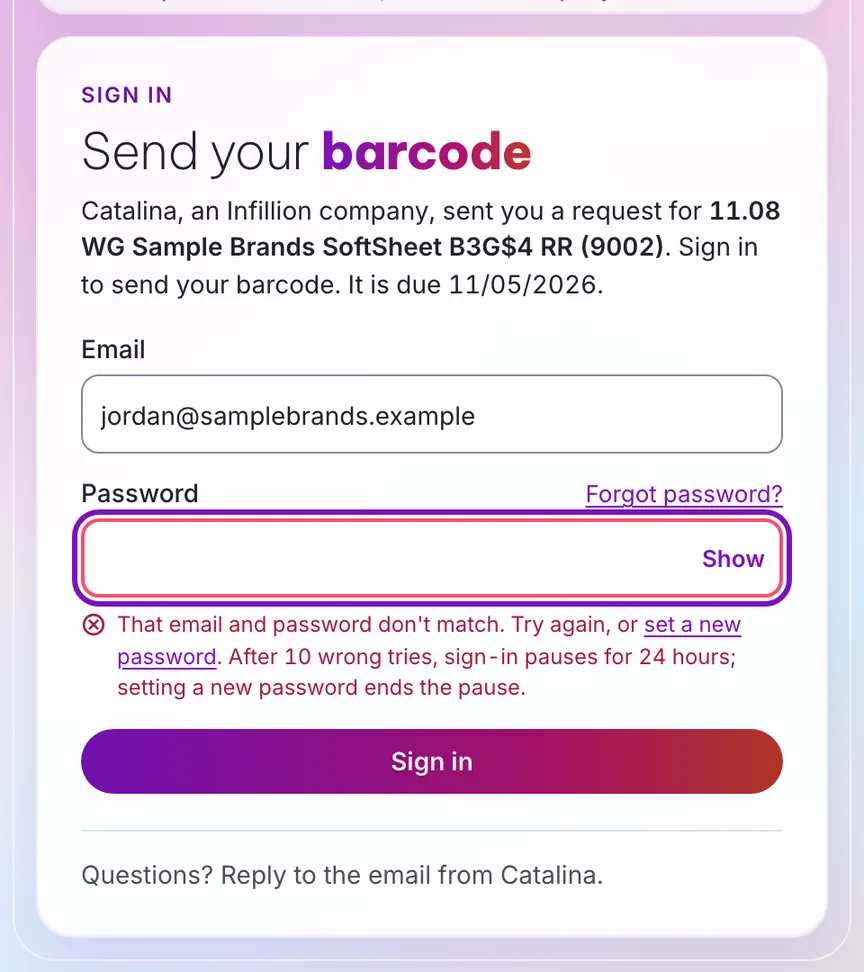
Sign in without an email link: go to the Catalina Connect sign-in page and enter your email and password. First time, or no password yet? Click Set one.
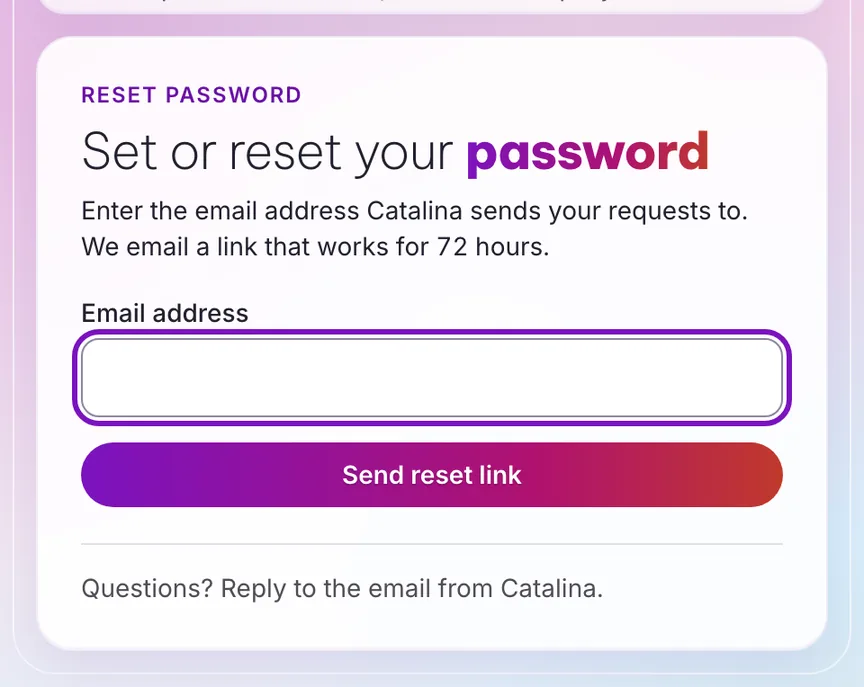
Forgot it, or setting one for the first time:
- Click Forgot password? (or Set one).
- Enter the email address Catalina sends your requests to and click Send reset link.
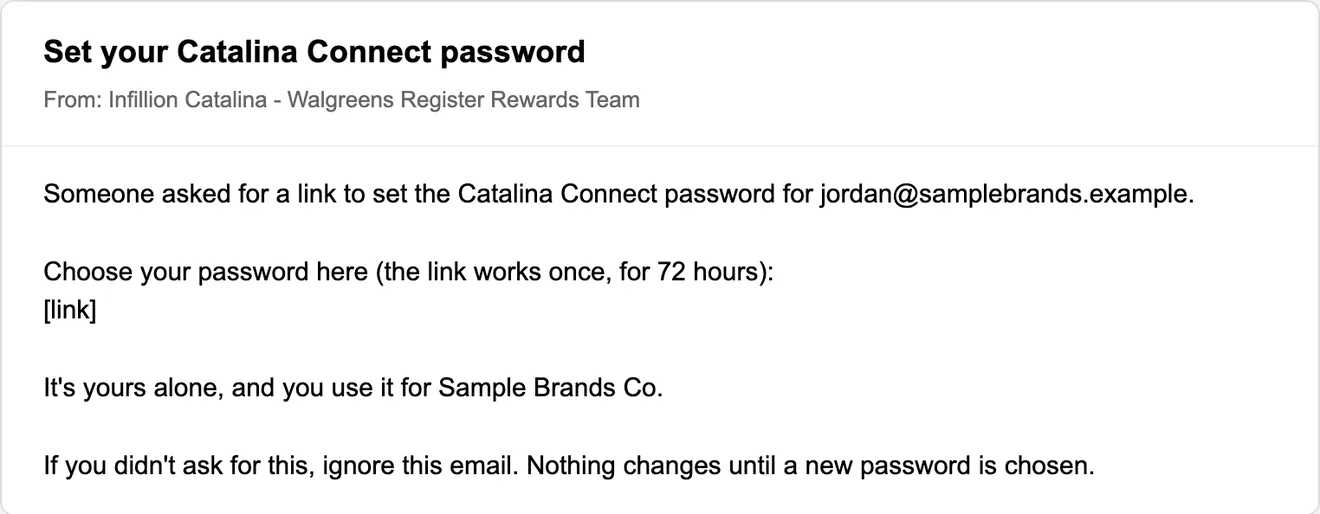
- Open the email and click the link within 72 hours. Each link works once.
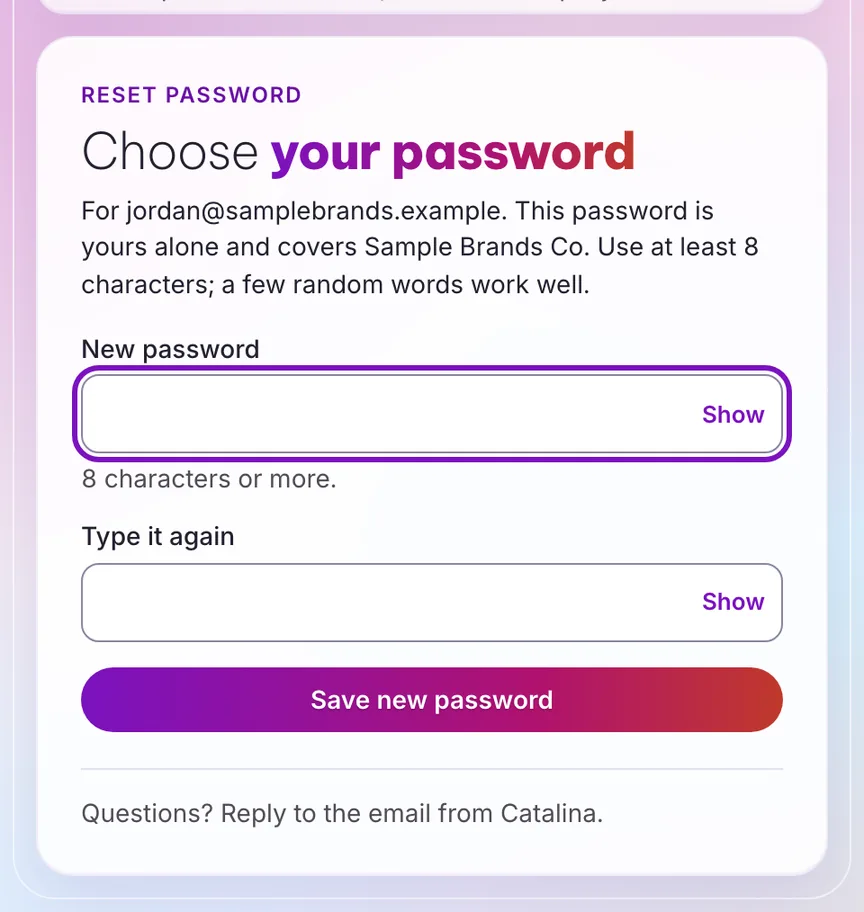
- Choose a new password and type it again.
After 10 wrong passwords, sign-in pauses for 24 hours. Setting a new password with Forgot password? ends the pause, and so can Catalina.
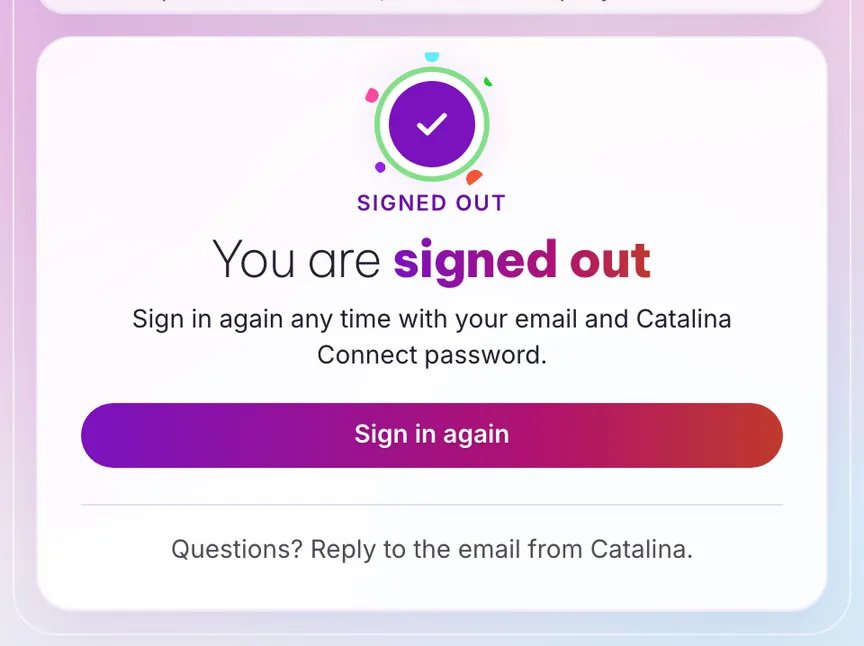
Signing out
Click Sign out at the top right, especially on a shared computer.
Part 6. Reference
Statuses
| Label | What it means | What to do |
|---|---|---|
| Action needed | Catalina is waiting on you: a Cost Estimate to approve, a barcode to submit or a Client Pack to approve. | Open the request. |
| Overdue | The barcode is past its due date. | Send it as soon as you can. |
| Barcode rejected | The barcode you sent failed a check. | Send a corrected barcode. |
| Revision 2, 3... | Catalina corrected the request or the Client Pack. | Check what changed, then act on the new version. |
| With Catalina | Catalina is working on it (checking your barcode or building the Client Pack). | No action needed. You will get an email. |
| Complete | The Client Pack is approved and the offer is ready for set-up & activation. | No action needed. |
The barcode checks
Catalina Connect reads the barcode value and compares it with the offer. These are the checks:
| Check | What it must be |
|---|---|
| Save Value | The offer’s save value, in cents (for example, 500 for $5.00). |
| Purchase Requirement | For Next Shopping Order coupons, always the same number as the save value. |
| Purchase Req. Code | 2 (value of total transaction). Look for this wording in your barcode generator tool. |
| Family Code | 000 |
| Save Value Code | 6 (cents off the transaction amount). |
| Applies To | 0 (the primary purchase requirement). |
| Store Coupon Flag | 0 (not a store coupon). |
| Multiply Flag | 0 |
| Expiry Date | The coupon expiry date for the offer, which includes the 2- or 4-week redemption period. The correct period is always in the Cost Estimate. |
| Start Date | Only if the barcode has one: the offer start date. |
Emails
| Subject starts with | When you get it | What to do |
|---|---|---|
| Welcome to Catalina Connect | You were added to a contact group. | Set up your password if the email has a link. Keep the guide links. |
| GS1 Barcode Request | A new request. | Send the barcode by the due date. |
| GS1 Barcode Request (revision N) | Catalina corrected a request. | Check what changed and send a matching barcode. |
| Reminder #N | The barcode has not arrived. | Approve the Cost Estimate if you have not, then send the barcode. |
| ACTION NEEDED TODAY: Reminder #N | The barcode is past due. | Send it today. |
| Cost Estimate approved | Someone in your group clicked Send approval to group. | No action needed. |
| GS1 Barcode Submission accepted | Your barcode passed. | No action needed. The Client Pack comes next. |
| Creative Client Pack Approval Request | The Client Pack is ready. | Review and approve, or ask for changes. |
| Creative CP Approved Confirmation | You approved the Client Pack. | No action needed. The request is complete. |
| GS1 Barcode Request withdrawn | Catalina withdrew a request. | No action needed. |
| Set your Catalina Connect password | You asked for a link to set your password (first time or forgotten). | Use the link within 72 hours. It works once. |
Words used in Catalina Connect
| Word | Meaning |
|---|---|
| Cost Estimate | The Excel spreadsheet Catalina sends with each request: the offer details and participating UPCs. |
| Client Pack | The PDF proof of your offer that Catalina builds and you approve, or send on for barcode scan testing. |
| GS1 barcode value | The long number under the coupon barcode, starting with 8110. |
| Save value | The amount the shopper gets off their next shopping order with the coupon. |
| Purchase requirement | What a shopper must spend for the coupon to work. For these offers, Next Shopping Order coupons (NSOs, valid on the entire next shopping order), it equals the save value. |
| POS / FF | Two offer columns in one request: at the register (POS) and in the circular (FF). Each needs its own barcode. |
| Contact group | The people at your company who get the emails, and see the requests, for one category and its brands. |
| All-access group | A contact group whose members see every request for your company. Catalina sets it up. |
Need help?
Reply to any email from Catalina, or write to WAGsInStoreRewards@catalina.com.